









Tired of the 3-app limit? Frustrated with having to re-sign your sideloaded apps every 7 days with a computer? Want to install emulators, tweaked apps, and utilities directly on your iPhone or iPad without a jailbreak? Then SideStore is a complete game-changer for your device..
SideStore is an open-source, non-jailbreak alternative app store for iOS that allows you to sideload apps directly on your device. It is a fork of AltStore that uses a local VPN to sign and install IPA files wirelessly without needing a computer after initial setup.
This comprehensive guide will walk you through everything: from understanding what SideStore is and gathering prerequisites, to step-by-step installation, advanced usage like enabling JIT, and solving common errors using the official documentation.
What is SideStore and Why Use It?
SideStore is an iOS application that allows you to sideload .ipa files (iOS app packages) onto your device using only your Apple ID. It’s a true alternative to the official App Store for apps that Apple doesn’t allow.
How It’s Different from AltStore
The key innovation is wireless refreshing. AltStore requires you to be on the same Wi-Fi network as a computer running AltServer to refresh apps every 7 days. SideStore, however, uses a clever combination of a local on-device VPN (LocalDevVPN) and a pairing file generated during installation to trick iOS into thinking it’s communicating with a trusted computer. This means:
- No computer needed after initial install.
- Apps refresh in the background automatically.
- It’s completely free and open-source.
What Can You Install?
The SideStore website showcases a huge variety of apps, proving its versatility:
- Emulators: PPSSPP (PSP), DolphiniOS (GameCube/Wii), MeloNX (Nintendo Switch), RetroArch, iNDS (Nintendo DS), MAME4iOS (Arcade).
- Utilities: iTorrent (torrent client), iSH (Linux shell), UTM (virtual machines).
- Tweaks & Tools: LiveContainer (run multiple apps in one), unc0ver (jailbreak tool for older iOS), XPatcher.
- Games & Media: PojavLauncher (Minecraft: Java Edition), Yattee (alternative YouTube frontend).
Important Limitations (The 3-App Rule)
Because SideStore uses a free Apple developer account, it is subject to Apple’s limitations:
- 3 Active Apps: You can only have 3 sideloaded apps installed and functioning at any one time. This includes SideStore itself, so you effectively have 2 slots for other apps.
- 10 App IDs per Week: You can only install a maximum of 10 different apps (using unique bundle IDs) in a rolling 7-day period.
How to get around this?
- Paid Developer Account ($99/year): This increases your limit to 10 active apps and extends signing to 365 days.
- LiveContainer: This ingenious app lets you install multiple apps inside a single container app, effectively bypassing the 3-app limit. It’s highly recommended and showcased on the SideStore site.
- SparseRestore Exploit (for older iOS): On iOS versions 18 db5/18.0.1 and below, you can use this exploit to bypass the limit, though it doesn’t affect the 10 App-ID weekly limit.
Prerequisites: What You’ll Need Before Starting
Before diving into the installation, gather everything on this checklist from the official prerequisites guide.
Hardware & Device Requirements
- Your iDevice: An iPhone, iPad, or iPod touch running iOS/iPadOS 15.0 or higher. A passcode must be set.
- A Computer (for initial setup only):
- Windows: 8 or higher (64-bit only; 32-bit and Windows on Arm are not supported).
- macOS: High Sierra (10.13) or higher.
- Linux: An up-to-date 64-bit distribution (Intel/AMD
x86_64or ARMaarch64).
- A USB Cable: To connect your device to the computer for the first time. A standard USB-A to Lightning cable is generally the most reliable.
Accounts & Software
- An Apple ID: This can be any Apple account. It’s highly recommended to use a secondary or “burner” Apple ID to protect your main account, as you are using a development certificate.
- Wi-Fi Connection: Required for the wireless refreshing to work.
- LocalDevVPN App: Download this free app from the official iOS App Store. It creates the local VPN tunnel SideStore needs.
- iLoader: The official tool for installing SideStore from your computer. You’ll download this based on your OS.
Computer-Specific Prep
- Windows:
- Install iTunes from the Microsoft Store or directly from Apple’s website. This installs the necessary mobile device drivers.
- Download the iLoader installer (MSI or EXE) and run it.
- macOS:
- No special prep needed. macOS has the built-in drivers.
- Download the iLoader .dmg file, open it, and drag the app to your Applications folder.
- Linux:
- Install
usbmuxdusing your package manager (e.g.,sudo apt install usbmuxdon Debian/Ubuntu). - Download the appropriate iLoader package for your distribution (DEB, RPM, or AppImage).
- Install
Step-by-Step Installation Guide
Follow these instructions carefully. They are synthesized from the official install guide.
Phase 1: Computer Setup with iLoader
- Connect Your Device: Use your USB cable to connect your iPhone/iPad to your computer.
- Trust the Computer: On your iPhone, you’ll see a prompt asking “Trust This Computer?” Enter your passcode to confirm. On your computer (Finder/iTunes), you may also need to click “Trust” if prompted.
- Open iLoader: Launch the iLoader application you just installed.
- Sign In with Apple ID: In iLoader, click “Add Account” and sign in with the Apple ID you intend to use for sideloading. Remember, it’s case-sensitive.
- Select Your Device: iLoader should automatically detect your connected iPhone. Select it from the list.
- Install SideStore: Click the button that says ‘Install SideStore (Stable)’ . Wait for the process to complete. iLoader will sideload the SideStore app onto your device.
Phase 2: On-Device Setup (Trust & Developer Mode)
Now, grab your iPhone. The steps vary slightly depending on your iOS version.
For iOS 15 & 16
- Open Settings > General > VPN & Device Management.
- Under the “Developer App” section, tap on the profile named after your Apple ID.
- Tap “Trust [Your Apple ID]” , then confirm by tapping “Trust” again.
For iOS 17 & 18+
- Trust the Developer:
- Go to Settings > General > VPN & Device Management.
- Tap on your Apple ID profile under “Developer App”.
- Tap “Trust [Your Apple ID]” . You may see “Allow & Restart”—tap it and enter your passcode.
- Enable Developer Mode:
- Go to Settings > Privacy & Security.
- Scroll to the very bottom. Under the “Security” section, you’ll see Developer Mode. Tap the toggle to turn it ON.
- Your device will prompt you to restart. Tap “Restart”.
Phase 3: First Launch and Finalizing SideStore
- Connect LocalDevVPN: Open the LocalDevVPN app you downloaded earlier. Tap “Connect” . It will ask to add VPN configurations—tap “Allow” and enter your passcode. Keep this VPN connected whenever you use SideStore to install or refresh apps.
- Open SideStore: Find the SideStore app on your home screen and open it.
- Sign In: You’ll be prompted to sign in. Use the same Apple ID you used in iLoader. If you have two-factor authentication enabled, enter the verification code when prompted.
- Perform the First Refresh:
- Navigate to the “My Apps” tab in SideStore.
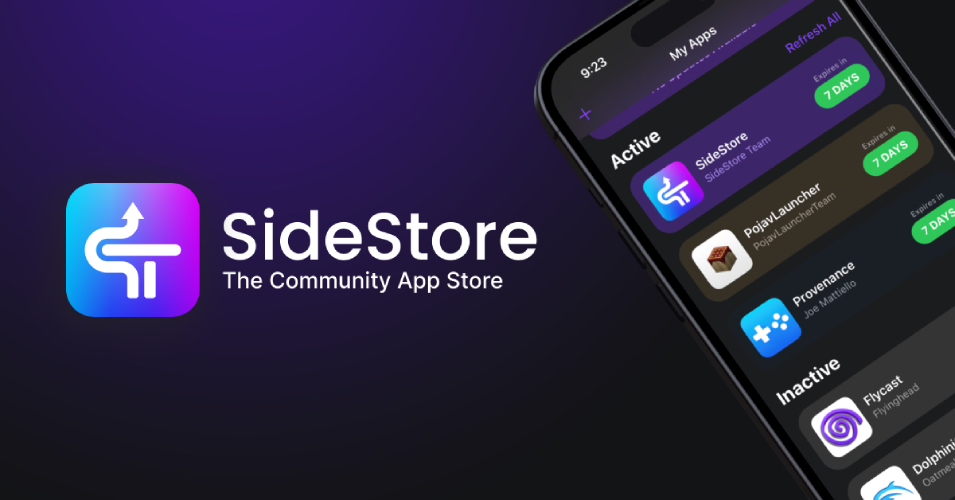
- You will see SideStore itself listed with a ‘7 DAYS’ badge next to it (this indicates the time remaining on its signature).
- Tap this ‘7 DAYS’ button.
- A pop-up may appear asking to revoke or create a new signing certificate. Tap ‘Yes’ or ‘Refresh Now’ .
- SideStore will now refresh its own signature. You’ll see a notification when it’s done, and the “7 DAYS” timer will reset.
- Congratulations! Your SideStore setup is complete. You can now disconnect your iPhone from the computer. You may never need it again.
How to Use SideStore: Installing Apps & Automation
Installing Your First IPA
- Find a
.ipafile for an app you want (ensure it’s from a trusted source). - Download it to your iPhone (e.g., in the Files app or directly from a website in Safari).
- Open SideStore (ensure LocalDevVPN is connected).
- Go to the “Apps” or “Browse” tab.
- Tap the “+” icon in the top corner.
- Navigate to where you saved the
.ipafile and select it. - SideStore will process and install the app. It will then appear on your home screen and in the “My Apps” tab within SideStore, where you can see its expiry timer.
The 7-Day Refresh Cycle & Automation
Free developer certificates expire every 7 days. If an app expires, it won’t launch until refreshed. This is where SideStore shines.
Manual Refresh: Open SideStore, go to “My Apps” , and tap the ‘X DAYS’ button next to any app. Ensure LocalDevVPN is connected.
Automated Background Refresh: SideStore is designed to refresh apps in the background automatically, as long as LocalDevVPN is connected and your device has a Wi-Fi connection. To maximize this:
- Keep LocalDevVPN connected whenever possible. The VPN doesn’t drain battery because it’s only a local connection to your own device, not an external server.
- Ensure your iPhone is connected to Wi-Fi.
- It’s a good practice to connect LocalDevVPN when you go to sleep and leave your phone charging on Wi-Fi. SideStore will often perform its refresh cycles during this time.
Enabling JIT (Just-In-Time Compilation)
JIT is crucial for emulators and some virtual machines to run at full speed. The method depends on your iOS version.
For iOS 16 and lower:
- Open SideStore and go to “My Apps” .
- Long-press on the app for which you want to enable JIT (e.g., DolphiniOS).
- Select ‘Enable JIT’ from the menu. Your device must be connected to Wi-Fi and LocalDevVPN.
For iOS 17.4 and higher:
The built-in method may not work. The recommended solution is to use StikDebug (formerly StikJIT). You can find tutorials for this in the SideStore documentation’s “Advanced” section.
Troubleshooting Common SideStore Errors
Based on the official troubleshooting docs, here are solutions to the most common problems.
| Issue / Error Code | Likely Cause | How to Fix It |
|---|---|---|
| Sign-in freezes or gets an error | Anisette server (which helps with Apple ID authentication) is down. | 1. In SideStore Settings, scroll to “Anisite Server” . 2. Select a different server from the list. Try a few. 3. You can also host your own server. |
| Not receiving 2FA code | iOS 18.1+ blocks the automatic code request. | For iOS 18.1+: Visit iCloud.com in a browser, try to sign in, and when prompted, choose “Use Different Apple Account.” Enter your details and get the code there to use in SideStore. For iOS ≤18.0.1: Get a code from Settings > [Your Name] > Sign-In & Security > Two-Factor Authentication > Get Verification Code. |
| (1414) No Wi-Fi/StosVPN | Wi-Fi or LocalDevVPN is not connected, or the pairing file is corrupt. | 1. Ensure Wi-Fi is on and LocalDevVPN is connected. 2. Restart LocalDevVPN. 3. If it persists, replace your pairing file using iLoader on your computer. |
| (1009) Too many App IDs | You’ve hit the 10-App-ID weekly limit. | You cannot manually delete App IDs. You must wait for them to expire 7 days after they were created. Check the “My Apps” tab to see when IDs will expire. |
| Apps disappeared from SideStore | This can happen after an update or glitch. | Don’t panic and don’t delete the apps from your home screen! Simply re-sideload the same .ipa files through SideStore. Your app data should remain intact. |
| (27) AFC Connection Failure | General connection issue with the minimuxer service. | 1. Ensure Wi-Fi and LocalDevVPN are connected. 2. Try the action again (spamming the button sometimes helps). 3. Restart SideStore and LocalDevVPN. 4. Replace your pairing file with iLoader. |
| ( -20101) Account info incorrect | Incorrect password, or Apple’s Terms of Service need accepting. | 1. Double-check your password. 2. Go to developer.apple.com in a browser, sign in with your Apple ID, and accept any new Terms of Service if prompted. |
Frequently Asked Questions (FAQ)
Q: Will the always-on VPN drain my battery?
A: No. The LocalDevVPN is a “loopback” VPN that only connects to your own device. It doesn’t route traffic through external servers, so its battery impact is negligible.
Q: Can I transfer apps from AltStore or Sideloadly?
A: Yes! As long as you haven’t deleted the original app from your device, simply use SideStore to install the same (or updated) .ipa file. Your app data will be preserved.
Q: Why does a “MacBook Pro” or “iMac” show up in my Apple ID devices?
A: These are not real devices. They are virtual machines generated by the Anisette server to help with the authentication process. No private data is sent to these servers.
Q: Why is my Apple ID getting locked?
A: This can happen if you’re using an old or overloaded public Anisette server. Try switching to one of the official servers listed in SideStore’s settings, or consider hosting your own anisette-v3-server for maximum security and stability.
Conclusion: Freedom from the Computer
SideStore delivers on its promise of a truly untethered sideloading experience. By investing about 15 minutes in a one-time computer setup, you liberate your iPhone or iPad from the 7-day tether. Combined with tools like LiveContainer to bypass the 3-app limit, SideStore transforms your device into a platform with virtually limitless potential.
If you encounter bumps along the way, the official documentation and error code list are excellent resources. The SideStore team and community are also active on their Discord server for further help. Happy sideloading!
0 Comments
Be the first to comment.