









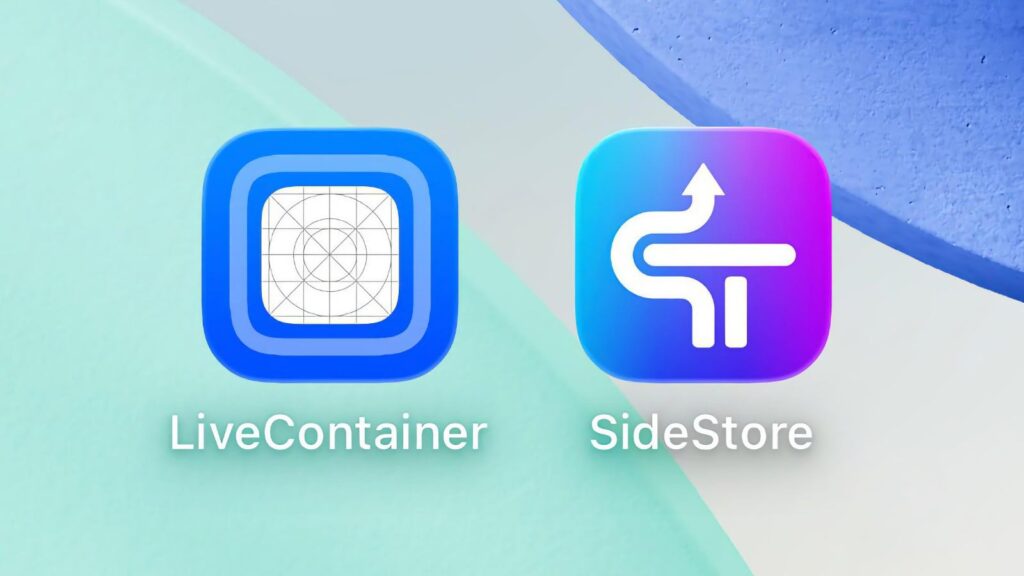
iOS 26 has been out for a while now and Apple has already relased the version 26.4 beta 4. For those with iDevices running this iOS version, here is Install SideStore + LiveContainer on iOS 26. The release of iOS 26 has brought a stunning new “Liquid Glass” design language and under-the-hood changes that have historically broken sideloading methods. However, the developer community has once again risen to the challenge. If you want to install apps outside the App Store on iOS 26 without the dreaded 3-app limit and without needing a PC every seven days, you’ve come to the right place.
This article will walk you through installing SideStore (the alternative to AltStore that refreshes apps wirelessly) and LiveContainer (a revolutionary app that lets you run multiple apps inside a single container). By the end, you’ll have a setup that effectively gives you unlimited sideloading capabilities, all for free.
What You Need to Know Before Starting
Before we dive into the technical steps, let’s break down what these tools are and why they work so well together on iOS 26.
What is SideStore?
SideStore is a fork of the popular AltStore. Its primary advantage is that it allows you to sideload .ipa files (iOS app files) and refresh their 7-day signatures directly from your iPhone or iPad . Unlike AltStore, which requires you to be on the same network as a computer running AltServer, SideStore uses a local VPN connection to trick your device into thinking it’s communicating with a trusted computer. This is made possible by a “pairing file” generated on a PC or Mac.
What is LiveContainer?
LiveContainer is a game-changer. It’s an application that acts as a host environment for other apps . Instead of installing ten different sideloaded apps to your home screen (which would require ten separate App IDs and count against Apple’s 3-app limit), you install them inside LiveContainer.
Think of LiveContainer as a “player” and your sideloaded apps as “tracks.” You install the player once, and you can load as many tracks as your storage allows. The latest version, 3.7.0, introduced critical features for iOS 26, including support for iOS 26 JIT (Just-In-Time compilation) scripts and native icon generation for the new Liquid Glass look .
The Magic Combo: SideStore + LiveContainer
By combining these two, you get the best of both worlds:
- Wireless Refreshing: SideStore handles the 7-day signing automatically in the background.
- Unlimited Apps: LiveContainer bypasses the 3-app ID limit. You only need to sign one app (the LiveContainer bundle) with your Apple ID. All the apps inside it don’t require separate signatures .
Compatibility: iOS 26 Specifics
iOS 26, particularly versions like 26.2 and 26.3, introduced architectural changes that affected sideloading. For instance, early betas had issues with the arm64e architecture, causing apps dependent on frameworks like CydiaSubstrate to crash .
- The Good News: LiveContainer 3.7.0 and newer SideStore nightlies have been updated to address iOS 26.4b1 compatibility and other iOS 26-specific crashes .
- JIT on iOS 26: LiveContainer 3.7.0 adds support for iOS 26 JIT scripts. This allows apps that require JIT (like emulators) to run smoothly by automatically detecting and utilizing tools like StikDebug .
Prerequisites
Before you start, gather the following:
- A Computer (PC or Mac): Only needed for the initial setup to create the pairing file and install SideStore.
- A USB Cable: To connect your iPhone/iPad to the computer.
- An Apple ID: It is highly recommended to use a burner or secondary Apple ID to protect your main account, as you are using a development certificate .
- iTunes (Windows only): Installed from Apple’s website (not the Microsoft Store version) to ensure the necessary drivers are present .
- iLoader: The essential tool for Windows/Mac that automates the installation of SideStore and LiveContainer by managing pairing files and certificates .
- SideStore + Livecontainer IPA available here:
Step-by-Step Installation Guide
Follow these steps carefully. We will break this down into four phases.
Phase 1: Preparation and Software Installation
- Install iTunes (Windows): If you are on Windows, download and install the standard version of iTunes from Apple’s website. This installs the necessary mobile device drivers.
- Download iLoader: Download the latest version of iLoader from its official source.
- Prepare Your iPhone/iPad:
- Enable Developer Mode: Go to Settings > Privacy & Security. Scroll down to the Security section and toggle on Developer Mode. Your device will prompt you to restart .
- Download LocalDevVPN: Go to the App Store and download the LocalDevVPN app. This app creates a local, on-device VPN that SideStore uses to “spoof” the connection to an AltServer, enabling wireless refreshes . It doesn’t route your traffic through an external server; it’s just a local loopback.
Phase 2: Installing the Initial SideStore with iLoader
- Connect Your Device: Plug your iPhone or iPad into your computer via USB.
- Launch iLoader: Open the iLoader application on your computer.
- Sign In: Click “Add Account” and sign in with the Apple ID you intend to use for sideloading (your burner account is recommended) .
- Select Installer: In the iLoader interface, under the “Installers” section, you will likely see an option for “LiveContainer + SideStore (Stable)” . Select this. This is a special bundled
.ipathat includes both apps in one, saving you an app slot. - Install: With your device selected, click the install button. iLoader will handle the signing and installation process using your Apple ID. Wait for the process to complete successfully.
Phase 3: Initial Setup and Trusting the Certificate
- Trust the Developer:
- Verify Developer Mode: Go back to Settings > Privacy & Security and ensure Developer Mode is still enabled (it should be after your earlier restart).
Phase 4: Configuring SideStore and Upgrading to LiveContainer
Now that the base apps are installed, we need to configure SideStore to work with your network and then finalize the LiveContainer setup.
- Connect LocalDevVPN: Open the LocalDevVPN app on your phone and tap Connect. You may be asked to allow the VPN to add configurations—tap “Allow” and enter your passcode .
- Open SideStore: Find and open the SideStore app on your home screen.
- Navigate to the Settings tab.
- Sign in with the same Apple ID you used in iLoader. If you have two-factor authentication enabled, enter the verification code.
- Refresh SideStore:
- Switch to LiveContainer:
- Close SideStore and open the LiveContainer app that was also installed.
- The first time you open it, it might ask for a pairing file. Navigate to On My iPhone > SideStore and select the file named
ALTPairingFile.mobiledevicepairing. This file was generated by iLoader and is the key to SideStore’s functionality. - In LiveContainer, tap the SideStore icon in the top-left corner to launch the integrated SideStore.
- Go to My Apps and tap the “7 DAYS” button next to LiveContainer to refresh its signature . Log in with your Apple ID again if prompted.
- Finalize LiveContainer Settings:
- Close and fully relaunch LiveContainer.
- Go to LiveContainer’s Settings (the gear icon).
- Tap “Import Certificate From SideStore” and tap OK . This shares the signing certificate with the container.
- Tap on “JIT-Less Mode Diagnose” and run the test. Ensure all items are green. This confirms your setup is correct for installing and running apps without JIT .
Congratulations! You have successfully set up the SideStore + LiveContainer environment on iOS 26.
Using Your New Sideloading Power
Now for the fun part: installing apps.
How to Install Apps (IPAs) in LiveContainer
- Download an IPA: Find a
.ipafile for the app you want (e.g., a modded YouTube, a banking app, a game). Download it to your iPhone’s Files app or directly from Safari. - Import into LiveContainer: Open LiveContainer. Tap the “+” button in the top-right corner .
- Browse for the IPA: Navigate to where you saved the
.ipafile and select it. - Run the App: The app will now appear on the main page of LiveContainer. Simply tap its icon to launch it. It will run inside the LiveContainer environment.
Creating Home Screen Icons
You don’t have to open LiveContainer every time to launch an app. LiveContainer 3.7.0 includes a “Launch App Shortcut” feature .
- In LiveContainer, find the app you want to create a shortcut for.
- Long-press on the app’s icon.
- Look for an option like “Add to Home Screen” or “Create Shortcut.”
- Follow the prompts. This will create a web clip or a shortcut that launches the app directly, saving 1-2 seconds of load time .
Managing App Data
LiveContainer uses “containers” for each app’s data.
- External Containers: Version 3.7.0 allows you to use external folders (like on a portable drive or SMB share) as an app’s data container, though this is experimental and may cause instability with some apps .
- Backup: Since app data is stored within LiveContainer’s documents, backing up the LiveContainer app via iTunes/Finder should preserve your sideloaded apps and their data.
The 7-Day Refreshing: Automation is Key
Remember, your free developer certificate is only valid for 7 days. If LiveContainer expires, none of your apps inside it will launch until it is refreshed.
Manual Refresh
Simply open LiveContainer, tap the SideStore icon, go to My Apps, and tap “7 DAYS” next to LiveContainer. Ensure LocalDevVPN is connected.
Automated Refresh with Shortcuts (The Best Way)
You can automate this process so you never have to think about it .
- Open the Shortcuts app on your iPhone.
- Go to the Automation tab.
- Tap the “+” icon and select “Create Personal Automation.”
- Scroll down and choose “Time of Day.”
- Set it to a time when you are usually asleep and your phone is likely connected to Wi-Fi (e.g., 4:00 AM). Set it to repeat “Weekly.”
- Tap “Add Action.”
- Search for and add the action “Open App.” Choose SideStore.
- Important: Uncheck the box “Ask Before Running.” This ensures the automation runs silently in the background.
- Tap “Done.”
While this automation just opens SideStore, you will need a second automation or a more complex one to simulate the tap on the “7 DAYS” button. Many users find that simply having SideStore open periodically is enough to trigger its background refresh checks, or they pair this with a “Wait” action and a “Tap” action, though the latter can be unreliable. The safest bet is to manually refresh once a week, but setting an automation to remind you to do it (by sending a notification) is also a great strategy.
Troubleshooting Common iOS 26 Issues
Even with a perfect setup, you might encounter issues. Here are fixes for common problems on iOS 26.
“LiveContainer Crashes When Importing an IPA”
This was a known issue in LiveContainer 3.6.1 on iOS 26.2, often related to an NSInvalidArgumentException .
- Solution: Ensure you are using the latest version of LiveContainer (preferably a recent nightly build or 3.7.0+), as these crashes have been marked as fixed .
“App Launches to a Black Screen”
This can happen if an app is not fully compatible with iOS 26’s architecture or depends on outdated frameworks .
- Solution:
“JIT-Less Mode Diagnose Fails”
If the test in LiveContainer settings fails, your setup is incomplete.
- Solution:
- Ensure LocalDevVPN is connected and active.
- Go back to LiveContainer Settings and tap “Import Certificate From SideStore” again.
- Verify that you have trusted the developer profile in Settings > General > VPN & Device Management.
“Cannot Sign In to Apple ID in SideStore”
Some users, particularly in certain regions, find their login attempts timing out .
- Solution: This is often a network issue. Try enabling a standard, external VPN on your phone to change your apparent network route, then attempt the login again. Once logged in, you can disconnect the external VPN .
“Certificate Limit Reached” Error
Apple allows you to have a limited number of active developer certificates associated with your Apple ID per week.
- Solution: Use iLoader on your computer. It has an option to “Revoke Certificates” for the selected Apple ID. Run this to clear out old, unused certificates, then try the installation or refresh process again .
Is It Safe? Ethical Considerations
- Open Source: Both SideStore and LiveContainer are open-source projects hosted on GitHub. This means their code is publicly viewable and auditable, which is a hallmark of trust in the developer community .
- Burner Apple ID: The recommendation to use a secondary Apple ID is a standard safety precaution to prevent any potential account flags related to certificate usage from affecting your primary iCloud data and purchases.
- Legality: Sideloading is an Apple-sanctioned method for developers to test their apps. Using a free developer account for this purpose exists in a legal grey area but is widely practiced and not prosecuted. You are responsible for the apps you choose to install.
Conclusion
Setting up SideStore and LiveContainer on iOS 26 might seem daunting at first, but the payoff is immense. You liberate your device from the strict confines of the official App Store while retaining all the security benefits of a stock, non-jailbroken iPhone. With the automation in place, you can enjoy a virtually unlimited library of apps that refresh themselves wirelessly, all running with the new iOS 26 aesthetic thanks to LiveContainer’s native icon support .
The tools are constantly evolving. If you encounter a specific issue, the best places for help are the SideStore Discord server and the LiveContainer GitHub repository . Happy sideloading
0 Comments
Be the first to comment.