










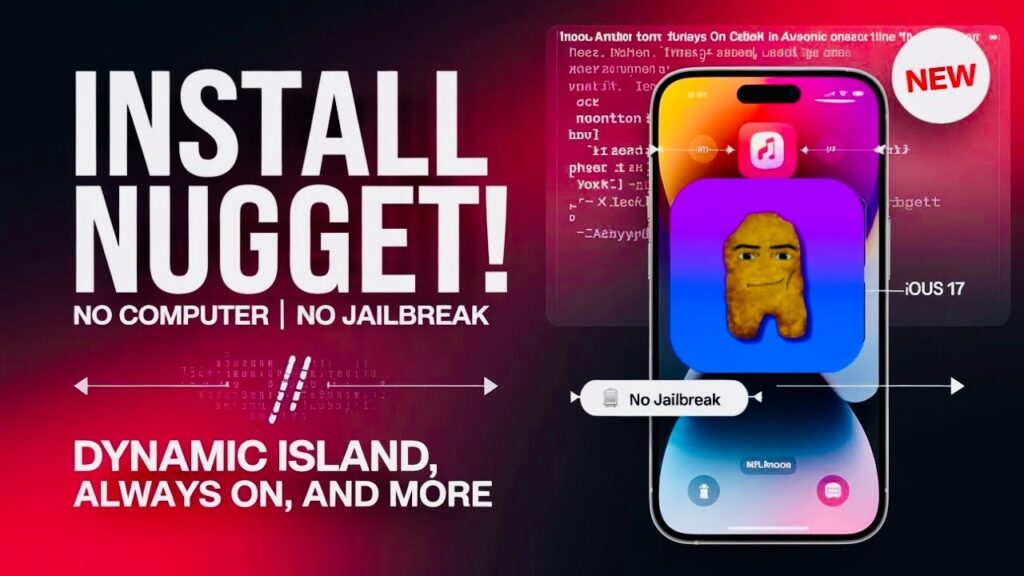
The golden age of full root jailbreaks might be behind us, but the desire for iOS customization is stronger than ever. Enter Nugget Jailbreak tool, a powerful desktop tool that has become the go-to solution for iPhone and iPad users running iOS 17.0 through 26.2 Beta 1 who want jailbreak-like features without actually jailbreaking their devices .
In this comprehensive guide, we’ll explore everything Nugget can do, how it works under the hood, and provide step-by-step instructions for transforming your iOS 26 device with animated wallpapers, hidden system tweaks, and features Apple never intended you to have.
What Exactly is Nugget?
Nugget is a third-party computer application (available for macOS, Windows, and Linux) that leverages two critical iOS exploits—SparseRestore and BookRestore—to write files to protected system locations . Unlike traditional jailbreaks that provide root access and break the sandbox entirely, Nugget operates within iOS’s security boundaries, modifying configuration files and property lists to enable features that are already present in iOS but hidden or restricted by Apple .
Think of it as a “semi-jailbreak”—you’re not installing Cydia or injecting tweaks into running processes, but you’re gaining unprecedented control over your device’s appearance and behavior. The tool’s developer, leminlimez, describes it simply: “Unlock the fullest potential of your device” .
Nugget vs. Traditional Jailbreak: Key Differences
How Nugget Works: The Technical Magic
Nugget’s power comes from two distinct exploits that target iOS’s backup and restore mechanisms :
SparseRestore (iOS 17.0 – 18.1.1)
This exploit works on older iOS versions by manipulating the backup and restore process, allowing files to be written to arbitrary system locations during a restore operation.
BookRestore (iOS 18.2 – 26.1 / 26.2 Beta 1)
For newer iOS versions (including most of iOS 26), Nugget uses BookRestore, an exploit discovered by Duy Tran and Huy Nguyen that leverages the Apple Books app . When you intentionally fail to download a book, the exploit triggers, allowing Nugget to inject modified files into your device’s system .
Important Version Warning
As of iOS 26.2 Beta 2 and later (including iOS 26.4), both exploits have been patched . If you’re on these newer versions, Nugget’s advanced features (MobileGestalt modifications and AI Enabler) will not work. Apple’s 26.4 update specifically introduced checks that break tools relying on loopback VPN connections .
What Can Nugget Actually Do?
Nugget’s feature set is remarkably extensive. Let’s break it down by category based on the official documentation and community discoveries .
1. PosterBoard: Animated Wallpapers
This is Nugget’s flagship feature and the main reason many users discover the tool. PosterBoard allows you to install true animated wallpapers (not just Live Photos) on both your Lock Screen and Home Screen . These wallpapers, often called “tendies” or “Poster Boards,” can include complex animations, gyroscope interactions, and dynamic elements .
You can download community-created wallpapers from sites like cowabun.ga or even convert your own videos into animated wallpapers . The wallpapers appear in a special “Collections” section within your iOS Settings app after installation .
2. MobileGestalt Tweaks (The “Feature Unlocker”)
MobileGestalt is a core iOS file that stores your device’s hardware and capability information . By modifying it, Nugget can trick iOS into enabling features your device supposedly doesn’t support :
- Dynamic Island: Enable it on any device, not just iPhone 14 Pro/15 models
- Always-on Display (AOD): Activate on devices without official support (warning: potential burn-in risk)
- Stage Manager: Enable iPad-style window management on iPhones
- iPadOS Mode: Transform your iPhone’s interface into an iPad experience (risky, not recommended for daily use)
- Boot Chime: Bring back the classic Mac startup sound to your iPhone
- Charge Limit: Add battery protection features
- Disable Region Restrictions: Remove camera shutter sound and other region-locked behaviors
3. iOS 26 “Liquid Glass” Controls
With iOS 26’s new “Liquid Glass” design language, Nugget added specific tweaks to control these visual effects :
- Disable Liquid Glass on the Lock Screen clock
- Disable Liquid Glass on the Dock
- Force Solarium fallback (older UI style)
4. Status Bar Customization
You can extensively modify your status bar :
- Change carrier name (or secondary carrier name)
- Adjust WiFi/cellular signal bars
- Modify battery capacity display
- Hide or show status bar icons
- Add custom text for time, date, or breadcrumbs
5. SpringBoard and Internal Options
- Set custom lock screen footnotes
- Disable low battery alerts
- Enable iPad-style keyboard (Key Flick) on iPhones
- Show build version in status bar
- Enable debug modes for various Apple apps
- Disable annoying daemons (OTA updates, usage tracking, Game Center, Screen Time, etc.)
6. AI Enabler and EU Features
For devices on compatible versions, Nugget can enable Apple Intelligence features or force EU-style sideloading options .
Prerequisites: Before You Begin
Before diving in, ensure you have everything ready :
Hardware & Software Requirements
- A Computer: Mac, Windows PC, or Linux machine
- iOS Device: iPhone or iPad running iOS 17.0 – 26.2 Beta 1
- USB Data Cable: Preferably USB-A to Lightning (more reliable for DFU/recovery modes)
- U.S. Apple ID (for iOS 18.2+ users): BookRestore requires Apple Books access, which isn’t available in all regions
Computer-Specific Prep
Windows:
- Install “Apple Devices” from the Microsoft Store OR iTunes from Apple’s website
- Ensure your Windows version is 19045+ (older builds) or 26100+
macOS: No preparation needed—Apple devices work natively.
Linux: Install usbmuxd and libimobiledevice packages .
Critical Warnings
- BACK UP YOUR DEVICE completely via iCloud or Finder/iTunes before proceeding .
- Nugget carries a small risk of “bricking” (white screen of death) , especially if you modify MobileGestalt incorrectly . Do not use on your only daily driver without a backup plan.
- After applying MobileGestalt modifications, never connect your device to third-party verification tools like 3uTools or iMazing—they will flag it as “modified” permanently .
- Temporarily disable Find My iPhone before applying any changes .
Step-by-Step Guide: Installing and Using Nugget
Phase 1: Download and Install Nugget
- Visit the official Nugget GitHub releases page and download the latest version for your operating system .
- Install and launch the application.
- On macOS, if you see “unidentified developer” warnings, right-click the app and select “Open” .
Phase 2: Extract Your MobileGestalt File
For MobileGestalt tweaks (like Dynamic Island or Stage Manager), you need your device’s unique configuration file :
- On your iPhone/iPad, install the “Save MobileGestalt” Shortcut from the official Nugget documentation.
- If the shortcut is blocked, go to Settings > Apps > Shortcuts > Advanced and enable “Allow Running Scripts.”
- Run the shortcut and save the resulting
com.apple.MobileGestalt.plistfile. - Transfer this file to your computer (AirDrop, email, etc.).
Alternative method (if shortcut fails): Use a-Shell or similar terminal app on iOS to copy the file directly from /private/var/containers/Shared/SystemGroup/systemgroup.com.apple.mobilegestaltcache/Library/Caches/com.apple.MobileGestalt.plist .
Phase 3: Connect Your Device and Prepare
- On your iPhone, go to Settings > [Your Name] > Find My > Find My iPhone and toggle it OFF .
- Connect your iPhone to your computer via USB.
- When prompted on your iPhone, tap “Trust This Computer” and enter your passcode.
- In the Nugget app, click the Refresh button to ensure your device is detected .
Phase 4: Choose Your Modifications
Nugget’s interface is organized into tabs :
For Animated Wallpapers (PosterBoard)
- Navigate to the PosterBoard tab .
- Click “Discover Wallpapers” to browse community creations, or download
.tendiesfiles from wallpaper sites. - Click “Import” and select your downloaded wallpaper files.
- They will be queued for installation.
For MobileGestalt Tweaks (Feature Unlocking)
- Navigate to the “Mobile Gestalt” or “Device Information” tab .
- Click “Select MobileGestalt File” and choose the
com.apple.MobileGestalt.plistyou saved earlier. - Browse through the available options and check the boxes for features you want:
- “Enable Dynamic Island”
- “Enable Stage Manager”
- “Enable Always-on Display”
- “Disable Region Restrictions” (for camera shutter)
- etc.
For Other Tweaks
- Status Bar: Customize carrier text, battery display, and icons
- SpringBoard Options: Set lock screen footnotes, disable low battery alerts
- Internal Options: Enable debug features, keyboard tweaks
- Disable Daemons: Turn off unwanted background services
Phase 5: Apply the Changes
- Navigate to the “Apply” section .
- If you’re modifying MobileGestalt, ensure your file is loaded.
- Click “Apply Changes” .
- DO NOT DISCONNECT YOUR DEVICE during this process .
Special Step for BookRestore Users (iOS 18.2+)
If you’re on iOS 18.2 through 26.2 Beta 1 :
- Open the Apple Books app on your iPhone (reinstall if deleted).
- Download any free book (e.g., “iPhone User Guide”).
- The download will intentionally fail—this is normal and indicates the exploit is working.
- Return to Nugget and continue.
- Your iPhone will automatically reboot when the process completes .
Phase 6: Post-Application Setup
- After reboot, if you applied MobileGestalt tweaks, verify your new features (e.g., check for Dynamic Island in Control Center).
- For wallpapers :
- Go to Settings > Wallpaper > Add New Wallpaper
- Scroll down to the “Collections” section
- Select your imported Nugget wallpaper
- Tap “Set as Wallpaper Pair” to apply to both Lock Screen and Home Screen
- Re-enable Find My iPhone in Settings .
Troubleshooting Common Nugget Jailbreak tool Issues
“No changes seem to apply” or “Device not detected”
- Ensure Find My iPhone is disabled
- Try a different USB cable (USB-A to Lightning is most reliable)
- Restart both computer and iPhone
- On Windows, verify Apple device drivers are installed correctly
BookRestore fails (no download failure in Apple Books)
- Confirm you’re using a U.S. Apple ID
- Ensure Books app isn’t restricted in Screen Time
- Try downloading a different free book
iPhone stuck in boot loop or won’t start
- Force restart your device (Volume Up, Volume Down, hold Side button)
- If that fails, put device in Recovery Mode and restore from your backup
Features don’t appear after successful application
- Some features (like Dynamic Island) may require a second reboot
- Check that your iOS version is within supported range
- Some tweaks conflict with each other—try applying fewer at once
“This accessory may not be supported” error
Risks and Ethical Considerations
Is Nugget Safe?
Compared to traditional jailbreaking, Nugget is considerably safer . It doesn’t modify kernel code or install untrusted background daemons. However, as the developer explicitly states: “We are not responsible for any damage done to your device” .
Specific Risks to Understand
- MobileGestalt modifications can permanently alter your device’s identity—if you later connect to verification tools, they’ll flag it as modified .
- Some “risky” options (like Disable thermalmonitord) can cause overheating or instability .
- Enabling Always-on Display on unsupported hardware may accelerate screen burn-in .
- iOS updates may partially revert changes or cause unexpected behavior.
Legal and Ethical Use
Nugget is designed for personal customization of devices you own. The developer’s disclaimer states: “I am not promoting any type unethical hacking” . Use responsibly and never on stolen devices.
The Future of Nugget and iOS Customization
With iOS 26.4 patching the BookRestore exploit, Nugget’s future on the absolute latest iOS versions is uncertain . However, for users who remain on iOS 26.2 Beta 1 or earlier, Nugget remains an incredibly powerful tool.
The developer, leminlimez, continues active development—version 7.2 was released as recently as February 2026, adding new iOS 26-specific Liquid Glass controls and improved stability .
Conclusion
The Nugget Jailbreak tool represents the evolution of iOS customization in a post-jailbreak world. While it can’t give you Cydia or system-wide tweak injection, it offers something arguably more valuable for most users: the ability to unlock genuinely useful features, personalize your device with animated wallpapers, and take control of system behaviors—all while maintaining full App Store compatibility and daily driver stability .
For the millions of users on iOS 26 who want more from their devices without the risks of traditional jailbreaking, Nugget is currently the best option available. Just remember to back up your data, follow the steps carefully, and enjoy your newly unlocked iPhone.
0 Comments
Be the first to comment.