














What if you could sideload apps on your iPhone without a computer, without complex setups, and without dealing with 7-day expirations? That’s exactly what Scarlet iOS promises—a direct-to-device sideloading solution that has attracted over 1 million active users with a 4.9-star rating.
Unlike SideStore which requires a one-time computer setup, or AltStore which needs periodic PC connections, Scarlet takes a different approach: enterprise certificate-based installation. This means you can download and install Scarlet directly from Safari, then use it to install any IPA file—all from your iPhone, with no computer involvement at any stage.
This comprehensive guide will walk you through everything Scarlet iOS has to offer: installation, features, troubleshooting, and how it compares to other sideloading methods.
What is Scarlet iOS?
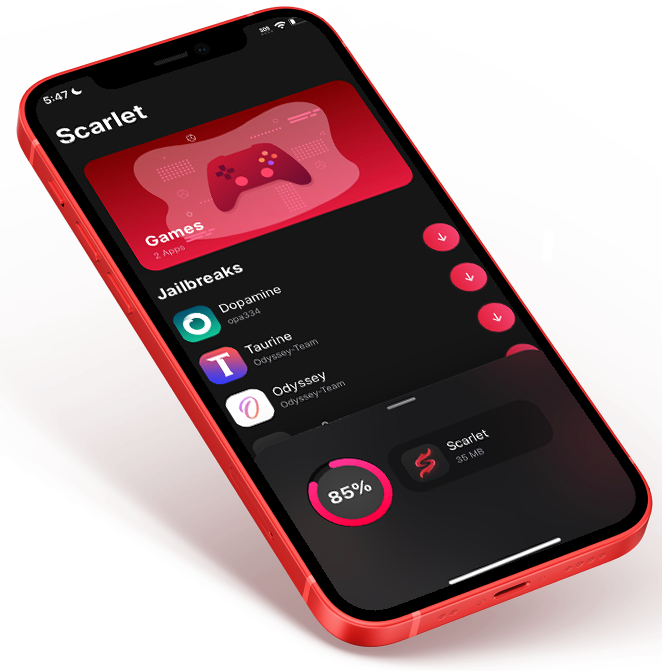
Scarlet iOS is a third-party app installer and library that allows users to download and install IPA files from external sources directly on their iOS devices. Think of it as an alternative app store that doesn’t require jailbreaking, computer connections, or complex certificate management.
How Scarlet is Different
| Feature | Scarlet iOS | SideStore | AltStore |
|---|---|---|---|
| Computer needed? | Never | Once for setup | Every 7 days |
| Installation method | Enterprise certificate | Personal developer certificate | Personal developer certificate |
| App expiry | Until certificate revoked | 7 days | 7 days |
| Setup complexity | Very low (3 steps) | Moderate | Moderate |
| App limit | Unlimited (until revoked) | 3 apps | 3 apps |
The key difference is Scarlet’s use of enterprise certificates—the same type of certificates companies use to distribute internal apps to employees. This bypasses the 7-day expiry and 3-app limit of personal developer accounts, but it comes with one major caveat: certificates can be revoked by Apple at any time.
Prerequisites: What You Need
One of Scarlet’s biggest advantages is its minimal requirements:
Device Requirements
- iPhone, iPad, or iPod touch running any modern iOS version (Scarlet supports iPhone 8 through iPhone 14 series)
- Internet connection for downloading
- Safari browser (for the initial download)
Account Requirements
- No Apple ID needed for basic usage
- No developer account required
- No jailbreak required
That’s it. No computer, no Apple ID sign-in, no complex prerequisites.
Step-by-Step Installation Guide
Installing Scarlet is remarkably simple—just three steps.
Phase 1: Download Scarlet on Your iPhone
- Open Safari on your iPhone or iPad (Chrome and other browsers may not work correctly for enterprise app downloads)
- Navigate to https://scarlet-ios.com/download/
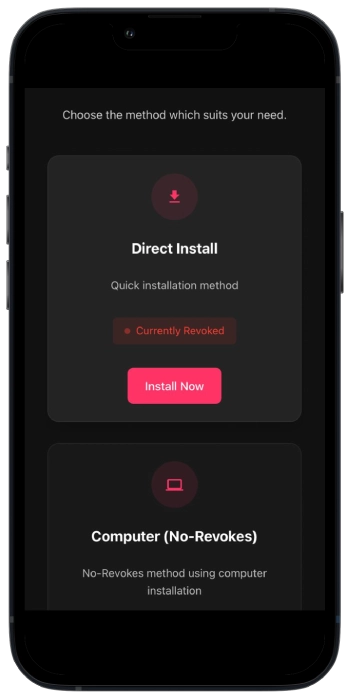
- Tap the “Install Now” button.
- A pop-up will appear saying “would you like to install Scarlet…”
- Tap “Install” to confirm
- Return to your home screen
- You’ll see the Scarlet app icon with a loading progress indicator
- Wait for the download to complete (this may take a minute or two)
Phase 2: Trust the Developer Certificate
This is the most critical step. Because Scarlet uses an enterprise certificate, iOS blocks it from running until you explicitly trust the developer.
- Open the Settings app on your iPhone
- Navigate to General > VPN & Device Management
- (On some iOS versions, this may be called “Profiles & Device Management”)
- Look for the developer profile
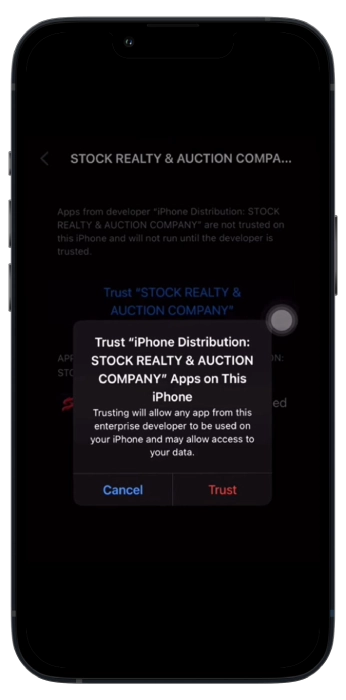
- According to the official guide, you’ll see an entry named “Stock Reality & Auction…”
- (Note: The exact name may vary depending on the current active certificate)
- Tap on the profile, then tap “Trust Stock Reality & Auction…”
- Confirm by tapping “Trust” again when prompted
Phase 3: Launch Scarlet
- Return to your home screen and tap the Scarlet icon
- The app will open normally—you’re now ready to sideload apps!
That’s literally it. No computer, no Apple ID, no 7-day refresh worries—just a working sideloading tool in under 5 minutes.
Using Scarlet to Install IPA Files
Once Scarlet is installed, using it to sideload other apps is equally straightforward.
Method 1: Installing Apps from Scarlet’s Built-in Library
Scarlet includes its own repository of apps that you can browse and install directly:
- Open Scarlet
- Browse or search for the app you want
- Tap “Install” next to the app
- The app will download and install automatically
- Find the new app on your home screen
Method 2: Installing Your Own IPA Files
If you have specific IPA files (tweaked apps, emulators, etc.) from other sources:
- Download the IPA file to your iPhone
- Save it in the Files app, or download directly from Safari
- Open Scarlet
- Hold down the arrow button (located somewhere in the interface—the exact location may vary by version)
- Select “Sideload IPA” from the menu
- Navigate to your IPA file and select it
- Tap “Install” to begin the sideloading process
- Wait for installation to complete—the app will appear on your home screen
Method 3: Installing from Repositories
Scarlet supports a repo system similar to third-party app stores on jailbroken devices:
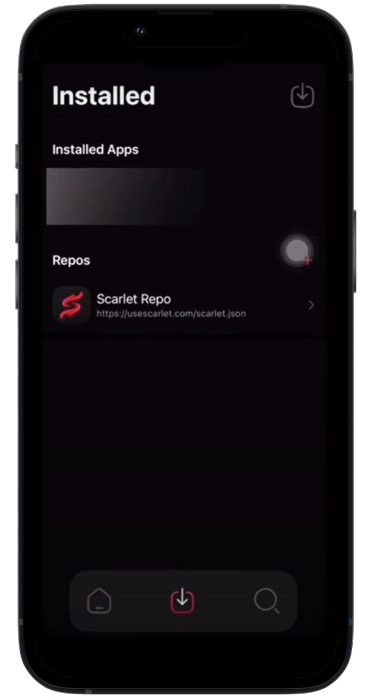
- In Scarlet, find the repositories or sources section
- Add community repo URLs to access more apps
- Browse and install directly from these sources
Scarlet’s Key Features
Beyond basic sideloading, Scarlet offers several advanced capabilities.
🎨 Modern, User-Friendly Interface
Scarlet’s interface is designed with a distinctive red and black color theme that’s both eye-catching and functional. The layout prioritizes ease of use, making it accessible even to first-time sideloaders.
⚡ Powerful App Tweaking
For users who want to modify existing apps:
- Import Dynamic Libraries through the sideload option
- Modify IPA files directly within Scarlet
- Add or remove tweaks before installation
- Proper management tools make the process convenient
💾 Backup & Restore
Scarlet includes backup/restore functionality that helps with:
- Preserving app data when reinstalling
- Transferring apps between devices
- Recovering from certificate revocations
🔒 Enterprise Security
The developers claim to have run extensive tests to ensure Scarlet is safe and virus-free. All data exchange is reportedly encrypted, though as with any third-party tool, you should exercise caution with the apps you install.
Supported Devices
Scarlet supports a wide range of iOS devices, including:
| Series | Models |
|---|---|
| iPhone 14 Series | 14 Pro Max, 14 Pro, 14 Plus, iPhone 14 |
| iPhone 13 Series | 13 Pro Max, 13 Pro, 13, 13 mini |
| iPhone 12 Series | 12 Pro Max, 12 Pro, 12, 12 Mini |
| iPhone 11 Series | 11 Pro Max, 11 Pro, 11 |
| iPhone X Series | XS Max, XS, XR, X |
| iPhone 8 Series | 8 Plus, 8 |
iPad models are also supported, though the website focuses primarily on iPhone compatibility.
The Enterprise Certificate Reality: Pros and Cons
Understanding how Scarlet works is essential to using it effectively.
How Enterprise Certificates Work
Apple provides enterprise certificates to companies for internal app distribution. These certificates allow apps to be installed on any device without going through the App Store review process, and without the 7-day expiry of personal developer certificates.
Scarlet (and similar tools like AppValley, TweakBox, etc.) obtains these certificates and packages them with the app. When you install Scarlet, you’re essentially installing an enterprise app that has been signed with such a certificate.
The Good: What You Get
- ✅ No 7-day expiry—apps stay installed indefinitely
- ✅ No 3-app limit—install as many as you want
- ✅ No computer required—everything happens on-device
- ✅ No Apple ID needed—complete anonymity
- ✅ Instant gratification—3-step installation, 5 minutes total
The Bad: The Revocation Risk
The major downside is that Apple regularly revokes enterprise certificates used by tools like Scarlet. When this happens:
- The Scarlet app itself may stop opening (crashing on launch)
- Apps installed through Scarlet may also stop working
- You’ll need to wait for the developers to obtain a new certificate and update the app
This is why the Scarlet website includes troubleshooting for the “Untrusted Enterprise Developer” error—it’s a sign the certificate has been revoked and you need an updated version.
The Practical Reality
For most users, the trade-off is worth it. Certificates typically last weeks or months before revocation, and the Scarlet team is usually quick to provide updated versions. When your certificate gets revoked, you simply:
- Delete the current Scarlet app
- Download the latest version from the website
- Reinstall and re-trust the new certificate
- Reinstall your apps (if needed—sometimes data persists)
It’s a minor inconvenience compared to the 7-day refresh cycle of personal certificate-based tools.
Troubleshooting Common Issues
“Untrusted Enterprise Developer” Error
This is the most common issue and happens when you haven’t trusted the certificate, or when the certificate has been revoked.
If you just installed Scarlet:
- Go to Settings > General > VPN & Device Management
- Find the developer profile (name varies)
- Tap it, then tap “Trust [Developer Name]”
If Scarlet was working but suddenly stopped:
- The certificate has likely been revoked
- Visit scarlet-ios.com/download for an updated version
- Delete the old Scarlet app
- Install the new version and repeat the trust process
Scarlet Won’t Download or Install
Possible causes and fixes:
- Using Chrome/Firefox: Use Safari instead—other browsers may block enterprise downloads
- Cellular data: Try switching to Wi-Fi (some carriers block enterprise downloads)
- Storage space: Ensure you have enough free space
- iOS restrictions: Check Screen Time/content restrictions aren’t blocking app installs
Apps Installed via Scarlet Crash on Launch
- Check if Scarlet itself opens—if Scarlet crashes, the certificate is likely revoked (see above)
- If Scarlet works but apps crash, try reinstalling the specific app
- Some apps require a “respring” or device restart—try rebooting your iPhone
- App may be incompatible with your iOS version
“This app cannot be installed because its integrity could not be verified”
This is another certificate-related error. Follow the same steps as the “Untrusted Enterprise Developer” fix.
Scarlet vs. The Alternatives
The Scarlet website lists several alternatives. Here’s how they compare:
| Tool | Type | Computer Needed? | Expiry | Best For |
|---|---|---|---|---|
| Scarlet | Enterprise certificate | No | Until revocation | Ease of use, no computer |
| SideStore | Personal certificate | Once | 7 days | Wireless refreshing, stability |
| AltStore | Personal certificate | Every 7 days | 7 days | Official, well-supported |
| TrollStore | Permanent exploit | Once | Permanent | Permanent installation (limited iOS versions) |
| AppValley | Enterprise certificate | No | Until revocation | Similar to Scarlet |
| Panda Helper | Enterprise certificate | No | Until revocation | Games and modded apps |
| Cydia | Jailbreak | No | Permanent | Full system tweaks (requires jailbreak) |
When to choose Scarlet:
- You want the simplest possible setup
- You don’t want to use your Apple ID
- You’re okay with occasional certificate revocations
- You need to install many apps (no 3-app limit)
When to choose SideStore/AltStore:
- You prefer more predictable, stable behavior
- You’re willing to do a one-time computer setup
- You want automatic background refreshing
- You’re concerned about certificate revocations
Is Scarlet Safe?
This is the most important question for any third-party app installer.
What Scarlet Says
The developers claim:
- Extensive testing to ensure the app is virus-free
- Encrypted data exchange
- High-standard security
The Reality
- Scarlet itself appears to be safe based on its popularity (1M+ users) and positive ratings
- The apps you install through Scarlet are your responsibility—Scarlet is just the installer
- Enterprise certificates themselves don’t introduce malware, but they do bypass Apple’s review
Best Practices for Safety
- Only install apps from trusted sources—just because you can install something doesn’t mean you should
- Read app permissions—be wary of apps requesting unnecessary access
- Stick to well-known modified apps (YouTube++, Spotify++, etc.) from reputable communities
- Avoid apps that ask for sensitive information (banking logins, etc.)
- Use a secondary Apple ID if you do need to sign into anything
Frequently Asked Questions
Q: Is Scarlet iOS free?
A: Yes, Scarlet is completely free to download and use.
Q: Do I need to jailbreak my iPhone?
A: No. Scarlet works on all non-jailbroken devices.
Q: Will apps installed with Scarlet stop working after 7 days?
A: No—because Scarlet uses enterprise certificates, apps don’t expire on a 7-day cycle. They work until the certificate is revoked.
Q: What happens when the certificate is revoked?
A: Scarlet and apps installed through it may stop opening. You’ll need to download an updated version from the website and reinstall.
Q: Can I install paid apps for free with Scarlet?
A: Scarlet itself doesn’t crack or pirate apps—it’s an installer. However, some repositories available through Scarlet may offer modified versions of paid apps. Be aware of the legal and ethical implications.
Q: Why does the developer profile have a weird name like “Stock Reality & Auction”?
A: These are the names associated with the enterprise certificates Scarlet uses. They change periodically as certificates are obtained and revoked.
Q: Will this void my warranty?
A: No. Sideloading apps doesn’t void your hardware warranty. It may, however, violate Apple’s terms of service for iOS usage.
Q: Can I update apps installed through Scarlet?
A: Usually, you’ll need to download and install updated IPA files manually. Some apps in Scarlet’s built-in library may receive updates through the app itself.
The Bottom Line
Scarlet iOS occupies a unique and valuable niche in the sideloading ecosystem. It offers the lowest barrier to entry of any sideloading method—literally anyone with an iPhone and Safari can be up and running in minutes. No computer, no Apple ID, no technical knowledge required.
The trade-off is the unpredictability of enterprise certificates. You’re trading the predictable 7-day refresh cycle for an unpredictable revocation cycle. For many users, this is an acceptable compromise—especially since reinstalling when certificates change is still faster and easier than setting up personal certificate-based alternatives.
If you value convenience above all else, and you’re willing to occasionally reinstall when Apple catches up, Scarlet is an excellent choice. If you prefer a more stable, predictable setup and don’t mind a one-time computer configuration, SideStore or AltStore might serve you better.
0 Comments
Be the first to comment.