
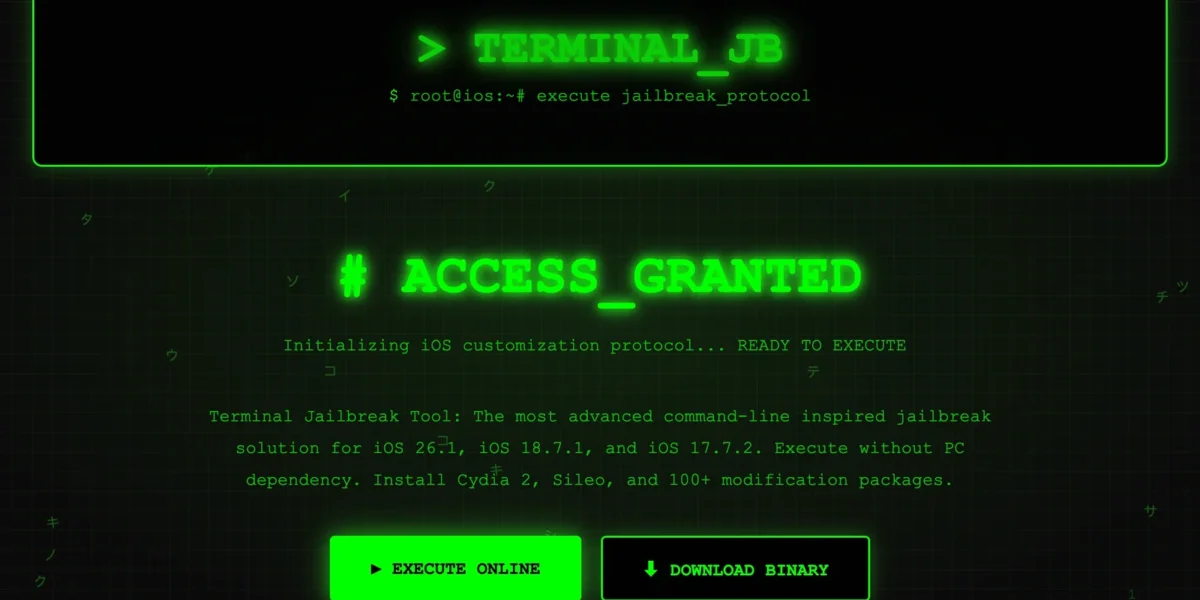
Terminal Jailbreak Tool – A PC-Free iOS Customization Solution

Terminal Jailbreak Tool is a new “jailbreak” alternative for modern iOS devices that lets you install Cydia-like package managers and tweaks without a computer. Developed by the ZeeJB team (led by veteran iOS developer Michael Warner), this tool uses a terminal-style interface on the iPhone itself. According to the official site, it “features over 100 jailbreak customization apps, modified apps, and games” and lets you install new package managers such as Cydia 2, Cydia Lite, Sileo Lite, and more. In practice, you download a special profile on your iPhone, install a “Terminal JB” app, and then use it to fetch and run these third-party apps. The goal is to provide a semi-jailbreak experience on iOS 14–18 (up through iOS 26 in development) without needing a PC or a kernel exploit.
What Is Terminal Jailbreak Tool?
Terminal Jailbreak Tool (sometimes called Terminal JB) is essentially an online installer/app for iPhone that mimics the look and feel of a command-line jailbreak utility. It is presented as a way to “execute jailbreak” on the device itself. According to ZeeJB, it is the “world’s first Terminal-Based Jailbreak Package Manager Installation tool”. In other words, rather than using a computer tethered jailbreak exploit, it installs a configuration profile and an on-device “Terminal” app. Through this app you can then install various customization packages directly to your iPhone or iPad. The founders advertise it as a way to “install and run 3rd-party iOS apps, games, mods, jailbreak tools, and tweaks, as well as iPhone themes”.
In practice, Terminal JB works by sideloading configuration profiles and bundled tweaks onto the device. It is not a true kernel-level jailbreak (since Apple has closed off new exploits on iOS 17/18), but rather a “jailbreak-style” workaround. One community guide calls it a “jailbreak repo extractor” – a tool to fetch and install third-party repositories on the device. In short, Terminal JB lets you enjoy many of the benefits of jailbreaking (custom apps, tweaks, alternate app stores) without Apple’s restrictions – but it does so by using a signed profile and app rather than an exploit. As such, it carries many of the same possibilities and pitfalls as any unofficial profile.
Key Features
- No Computer Needed: You perform all steps on the iPhone or iPad itself (using Safari and the Settings app). This “PC-free” approach makes it more accessible to casual users.
- Built-In App Store: Terminal JB includes dozens of ready-to-install tweaks, mods, games, and apps. ZeeJB boasts “over 100 jailbreak customization apps” built in, from new versions of Cydia and Sileo to custom themes and utility apps.
- Alternate Package Managers: You can install modern package managers (sometimes called “Cydia 2”, “Cydia Lite”, “Sileo Lite”, etc.) that let you download more tweaks. The tool specifically advertises support for “Cydia 2, Cydia Lite” and other custom stores.
- Wide Device Support: It works on most current iPhones and iPads. For example, ZeeJB lists compatibility with every iPhone from the iPhone 6S up through the latest iPhone 17/17 Pro Max, plus all recent iPad models. It also claims support for iOS 14.0 all the way up to iOS 18.7.3 (and iOS 26.3 betas).
- Terminal Interface: The app mimics a command-line or terminal interface. On-screen it looks like a green-text console (see image above), reinforcing the hacker aesthetic. Users run commands or select options to install packages, giving a “techie” feel even for beginners.
- Config Profiles: The tool is delivered via an iOS configuration profile. When you tap “Download” in Safari, a profile is sent to Settings. Installing that profile adds the Terminal JB app to your Home screen and allows it to install content on your device.
Compatible iPhones, iPads and iOS Versions
Terminal Jailbreak Tool is advertised to support a wide range of Apple devices and firmware levels. According to ZeeJB’s compatibility list, the tool works on:
- iOS 18.x: All official releases from iOS 18.0 up through iOS 18.7.3 (latest public update).
- iOS 17.x: All versions from iOS 17.0 through 17.7.2.
- iOS 16.x: Versions 16.0 up to 16.7.12.
- iOS 15.x: Versions 15.0 up to 15.8.7.
- iOS 14.x: Versions 14.0 up to 14.8.1.
Supported iPhone models include the latest (17 Pro Max / 17 Pro / 17) down to older phones like iPhone SE (2nd generation) and iPhone 6S. Basically, any 64-bit device running at least iOS 14 should work. The tool also supports “latest iPad models”, meaning most iPads on these firmware versions should be covered.
(Note: Some sources differ. A community jailbreak tracker notes Terminal JB as supporting up to iOS 16.2, suggesting iOS 17/18 support may be experimental or unofficial. In practice, ZeeJB promotes it on the newest iOS; users should check current guides for the very latest compatibility.)
Step-by-Step Installation Guide for installing and using the Terminal Jailbreak Tool
Getting started with Terminal JB is straightforward if you follow the steps carefully:
- Download the Profile: On your iOS device, open Safari and go to ZeeJB’s Terminal JB download page. Tap the “Download” or “EXECUTE ONLINE” button in Safari. You will be prompted to download a configuration profile. Tap Allow to download it.
- Install the Profile: Once downloaded, go to Settings > General > VPN & Device Management. There you’ll see a profile named something like “Terminal JB Installer”. Tap it, then tap Install. (You may need to enter your device passcode.) A warning about the profile’s content appears; tap Install again to confirm.
- Trust the Certificate: After installation, still in Settings > Device Management, you may need to Trust the profile or developer certificate if asked. This authorizes the Terminal JB app.
- Launch the App: Return to your Home screen. You should now see a Terminal icon (often labeled “JB Terminal” or similar). Tap it to open the app. The first run may require an Internet connection to configure.
- Install Packages: Inside the Terminal JB app, you’ll have options or commands to install various package managers and tweaks. Typically you log in (sometimes via an online account or direct link) and then select what you want (for example, install “Cydia 2”). The app will then download and install that package just like any other app on your device.
- Enjoy Tweaks: Once installed, you can run the new package manager (e.g. Cydia 2) to browse and install additional tweaks or apps. The changes appear immediately, customizing your iPhone’s look and behavior.
These steps are summarized from official instructions. In essence, you install the configuration profile which adds the Terminal JB environment, then use that environment to pull in jailbreak content. There is no PC or cable needed – all steps are done directly on the iPhone or iPad.
Troubleshooting Tips
- Missing App Icon: If you don’t see the Terminal JB app appear after installing the profile, go back to Settings > General > VPN & Device Management and ensure the profile is fully installed. Try tapping Install and Done again. If the icon still doesn’t show, reboot your device and check again.
- Profile Install Error: Make sure your device’s date and time are correct. An incorrect clock can cause profile signature errors. Also confirm you tapped Allow on the download pop-up in Safari, and tapped Install on the profile page in Settings.
- Untrusted Enterprise Warning: You may get an “Untrusted Developer” warning when running Terminal JB. This is because it uses an enterprise certificate. You can trust it by going into Settings > General > VPN & Device Management and trusting the certificate listed for the profile.
- Internet Required: Terminal JB needs an active Internet connection (Wi-Fi or cellular) both to download the profile and to fetch tweaks. Make sure your device is online when running the app.
- Deleting the Profile: If something goes wrong or you no longer want Terminal JB, you can remove the profile under Settings. Note that, as Apple explains, deleting the profile will remove all apps and data installed by that profile. This will effectively “uninstall” everything Terminal JB added.
Risks and Security Considerations
Using any jailbreak or customization tool carries risks. Apple’s own warnings remind us that “unauthorized modification of iOS can cause security vulnerabilities, instability, shortened battery life, and other issues”. Terminal Jailbreak Tool is essentially a third-party profile that installs software outside the App Store, so proceed with caution:
- Fake or Scam Sites: The iOS ecosystem has many fake jailbreak offers. The iOS Jailbreaking Wiki notes that “websites offering fake iOS jailbreaks… often ask for payment… but have no actual jailbreak to offer”. Only download Terminal JB from reputable sources (like ZeeJB). Beware of any site that asks for money or promises features that seem too good to be true.
- Configuration Profile Risks: Installing a profile gives it broad device permissions. Apple notes that a profile can define many settings and apps, and if you delete it, all associated apps and data go away. In other words, Terminal JB has deep access to your device when installed. Only install it if you trust the ZeeJB team or source.
- Warranty and Apple Service: Keep in mind Apple considers jailbreaking a violation of its terms. An Apple Support article explicitly says it “may deny service for an iPhone… that has installed any unauthorized software,” including jailbreaks. Using Terminal JB could void your warranty or support.
- Malware Possibility: Always be mindful that sideloaded apps or tweaks could contain malware. There is no review process for these packages. Stick to well-known tweaks, and consider any custom software a potential security risk.
Legal Perspective
In most countries, simply jailbreaking your own device for personal use is legal. For example, U.S. law (under DMCA exemptions) allows smartphone jailbreaking as of 2010/2012. The European Union also permits circumvention for interoperability, which covers jailbreaking. However, laws vary globally (some Asian countries are unclear or restrictive). Check local regulations if you’re unsure.
That said, selling or distributing jailbreak tools might have legal grey areas. Also, jailbreaking violates Apple’s software license. Apple itself warns it can void the device warranty. They won’t arrest you for jailbreaking your iPhone, but they can refuse service or repairs.
In summary, Terminal Jailbreak Tool is legal for most users to download on their own devices, but it remains against Apple’s official policy. Always back up your device data first, in case you need to restore.
Alternatives and Comparisons
Terminal JB is one of several “no-computer” jailbreak-like tools for modern iOS. Others include:
- Palera1n (Virtual Jailbreak): A newer approach that uses virtualization on M1/M2 Macs to jailbreak iOS 15–18 on some devices. Unlike Terminal JB, Palera1n requires a computer or special Mac build.
- TrollStore / iBundles: These allow you to sideload and “persist” apps by exploiting developer certificates. They do not use a download profile in Safari like Terminal JB, but require other setup. They don’t fully jailbreak the device but allow custom apps.
- Checkra1n, Unc0ver, Taurine: Traditional jailbreaks that fully break kernel security. These currently only work up to iOS 14 (and Checkra1n only on older devices). For iOS 17/18, no full jailbreak exists, which is why tools like Terminal JB emerged.
The key difference is that Terminal JB does not offer a true root jailbreak (no Kernel access or complete app-layer freedom). It simply provides a package manager environment. That makes it safer in some ways (no low-level exploit), but also means you can’t install every Cydia tweak – only those in its provided repos. On the other hand, it supports newer devices that lack other jailbreaks, and it’s easier for novices.
Conclusion and Next Steps
Terminal Jailbreak Tool presents an intriguing way to customize iPhones on the latest iOS versions. By installing a simple profile and running a built-in “Terminal” app, users can unlock a collection of jailbreak tweaks without a computer. Do note: this is still unofficial and has potential pitfalls. As with any jailbreak-like utility, read instructions carefully, only use trusted downloads, and know how to remove it if needed.
If you’re eager to try it, ZeeJB’s official pages include download links and guides. Follow the step-by-step process above. Always backup your device first. When used cautiously, Terminal JB can add a world of tweaks and apps to your iPhone – all straight from Safari.
Are you ready to unlock new iOS features? Give Terminal Jailbreak Tool a try today, and explore its repository of tweaks. Remember to share your experiences and questions in the comments below!


Nice job here. Keep on the good work