iOS 26 Jailbreak? Here is how to unlock “Liquid Glass” customization Features

Is is really possible to perform an iOS 26 Jailbreak? If yes, what tools does one need to perform this jailbreak? If you are asking these questions, then this article might be just what you need to kickstart. Apple’s iOS 26 update, released in September 2025, ushered in the stunning “Liquid Glass” design language—a new era of deeper translucency, dynamic blur effects, and a more immersive interface. While beautiful, this update also introduced the Kernel Integrity Protection (KIP) , a formidable new security layer that has, for now, made traditional root jailbreaks impossible on devices with A12 chips and newer
But where there’s a will (and a community of brilliant developers), there’s a way. A new generation of tools doesn’t try to break the kernel. Instead, they exploit a chink in iOS’s armor: the MobileGestalt subsystem. This has opened the door to a level of customization previously thought impossible without a full jailbreak.
This guide will walk you through using Misaka26, the most powerful of these new tools, to modify the very fabric of iOS 26, enabling hidden features, changing system behaviors, and even making your iPhone think it’s an iPad.
Understanding the iOS 26 Customization Landscape
The End of the Road for Root Jailbreaks?
Let’s be clear from the outset: as of early 2026, there is no public root jailbreak for iOS 26 on A12+ devices. The security company Corellium notes in its 2026 outlook that the era of using jailbroken devices for security testing on the latest iOS versions has effectively ended . While a Vietnamese security researcher reportedly achieved a private, internal jailbreak for research purposes, no public tool has been released .
Tools like Palera1n, Dopamine, and Checkra1n, which you might find mentioned in outdated articles, do not work on iOS 26 . However, there’s a silver lining for older, “checkm8”-vulnerable devices (iPhone X and earlier). Tools like Lockra1n (which we covered in a previous article) can still provide deep system access, but for the vast majority of users on modern iPhones, the path to customization lies elsewhere .
The Game Changer: The MobileGestalt Exploit (bl_sbx)
In late 2025, researchers Hana Kim and @khanhduytran0 publicly disclosed a critical vulnerability in the MobileGestalt subsystem, affecting iOS versions from 16.0 up to 26.2 Beta 1 .
MobileGestalt is a core iOS service that acts as the device’s “information center,” telling apps and the system about your hardware and configuration (e.g., “Is this an iPhone? Does it have a Dynamic Island? Is it an iPad?”) . The exploit, codenamed bl_sbx, allows a carefully crafted app to achieve “sandbox escape,” gaining the privileges of high-level system services like itunesstored .
This doesn’t grant root access, but it allows a tool to modify the very information MobileGestalt provides. By tricking the system into believing it has different hardware capabilities, we can unlock features that are already present in iOS but are disabled by Apple based on your device model .
Tool #1: Misaka26 – The Ultimate Customization Suite
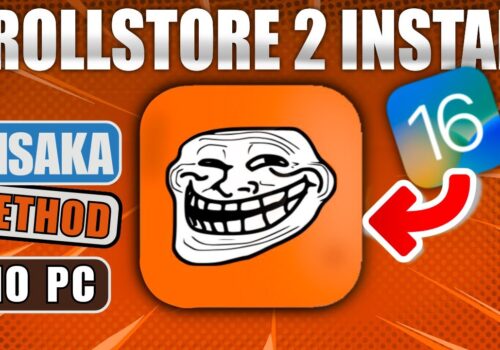
Misaka26 is the flagship tool leveraging this exploit. Developed by straight-tamago and 34306, it’s a desktop application for macOS and Windows that allows you to modify your device’s MobileGestalt file .
What Can You Do with Misaka26?
The list of features is impressive and constantly growing :
- TrollPad (Enable iPad Multitasking): This is the headliner. It makes your iPhone adopt the iPad-style dock (with recent apps), the iPad app switcher, and even Stage Manager, complete with resizable, floating windows .
- Enable M-Chip/Pro-Chip Games: Force the App Store to allow you to download and play games originally designed for Apple Silicon Macs (like the Resident Evil series) on your iPhone.
- Dynamic Island: Enable the Dynamic Island UI on older, non-Dynamic Island devices.
- Always-on Display (AoD): Activate the always-on display feature on compatible (and sometimes even non-standard) devices.
- Action Button: Add the Action Button from the iPhone 15 Pro to your Control Center or via other triggers.
- Charge Limit, Boot Chime, Stage Manager, and much more.
Prerequisites
- A Mac (Intel/Apple Silicon) or Windows PC.
- An iPhone or iPad running iOS 26.0, 26.1, or 26.2 Beta 1. The exploit is patched in iOS 26.2 Beta 2 and later .
- A USB data cable (USB-A to Lightning is recommended for reliability, especially for entering recovery modes) .
- iTunes installed (on Windows) to ensure proper drivers are present .
Step-by-Step Guide: Using Misaka26 to Enable iPad Features (TrollPad)
This is the most popular modification. Follow these steps carefully. We will be using the method to enable TrollPad (iPad Multitasking) .
Phase 1: Preparation on Your iPhone
- Disable Find My iPhone: This is crucial as the security feature can block system modifications.
- Save Your MobileGestalt File (The “Key”): This file is unique to your device and contains all its capability flags. We need to extract it.
- On your iPhone, download the official “Save MobileGestalt” Shortcut. You can find the official link on the Misaka26 GitHub page or on trusted jailbreak blogs .
- If the shortcut is blocked, go to Settings > Apps > Shortcuts > Advanced and toggle on “Allow Running Scripts” .
- Run the shortcut. It will generate a text output containing your device’s MobileGestalt data.
- Save this data as a file named
com.apple.MobileGestalt.plistin the Files app (e.g., in your On My iPhone folder) .
- Transfer the File: AirDrop, email, or use a messenger to transfer this
.plistfile to your computer where you’ll run Misaka26.
Phase 2: Download and Prepare Misaka26 on Your Computer
- Download Misaka26: Go to the official GitHub repository for straight-tamago/misaka26 and download the latest release for your operating system .
- Extract and Open: Extract the downloaded archive. On macOS, you may need to right-click the app and select “Open” to bypass Gatekeeper. If you get a permissions error, open Terminal and run
xattr -c /path/to/misaka26.app. - Connect Your iPhone: Plug your iPhone into your computer with your USB cable. If prompted, tap “Trust This Computer” on your iPhone and enter your passcode.
- Load Your MobileGestalt File:
Phase 3: Apply the TrollPad Tweak
- Find the Feature: In Misaka26’s list of supported features, scroll until you find “TrollPad – iPad Multitasking (18.0+)” .
- Select and Apply: Check the box next to TrollPad (or tap it, depending on the interface). Then click the “Apply” button .
- Wait for the Reboot: Misaka26 will work its magic, patching the in-memory flags on your device. Do not disconnect your iPhone during this process . Your device will automatically reboot. If it doesn’t apply on the first reboot, try the “Apply” step once more .
- Explore Your New Interface: After the reboot, go through the setup. You should now be greeted by an iPad-like interface on your iPhone!
Phase 4: Restore Your Settings and Revert (If Needed)
- Re-enable Find My: Once you’re happy with the setup, don’t forget to re-enable Find My iPhone in Settings for security .
- How to Revert: If you experience bugs or just want to go back to normal:
- Reconnect your iPhone to your computer and open Misaka26.
- Load your original
com.apple.MobileGestalt.plistfile again. - Look for a “hidden menu” or “Regenerate MobileGestalt (Reset)” option, often found under a menu button or in the settings section .
- Click it and wait for your device to reboot. Your iPhone will return to its default configuration .
Tool #2: Nugget – For Next-Level Wallpapers
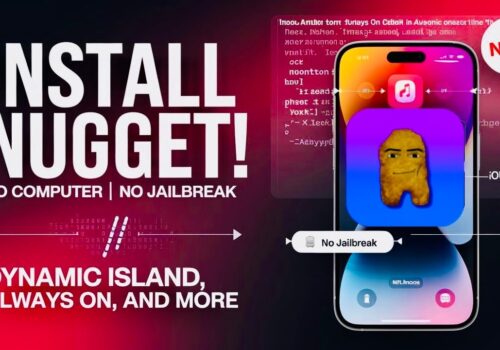
While Misaka26 handles deep system tweaks, Nugget is a fantastic companion tool focused on visual customization, specifically animated wallpapers known as “Poster Boards” .
How to Install Custom Animated Wallpapers with Nugget
Nugget uses a similar, albeit simpler, computer-based injection method.
- Preparation is the Same: Just like with Misaka26, you’ll need to temporarily disable Find My iPhone before starting .
- Download Nugget: Get the latest version from its official GitHub page .
- Download Wallpapers: In the Nugget app, there’s a “Discover Wallpapers” button that lets you browse and download community-created Poster Boards directly. Save them to your computer .
- Connect and Import: Connect your iPhone, trust the computer, and click Refresh in Nugget so it recognizes your device. Go to the “PosterBoard” tab and click “Import” to add the wallpaper files you downloaded .
- Apply Changes: Go to the “Apply” section and click “Apply Changes” . Your iPhone will reboot .
- Set Your New Wallpaper: After the reboot, go to Settings > Wallpaper > Add New Wallpaper. Scroll down to the new “Collections” section, and you’ll find your imported Nugget wallpapers ready to be set .
- Re-enable Find My: Don’t forget to turn Find My iPhone back on .
Important Warnings and Considerations
- Version Lock: The
bl_sbxexploit is only functional on iOS 26.2 Beta 1 and below . If you are on iOS 26.2 Beta 2 or higher, you cannot use these tools. This is why many enthusiasts choose to stay on an older, exploitable version. - Risk is Real: These tools modify system files. While generally safe, there is a risk of a bootloop or other instability . Always back up your device fully to iCloud or your computer before attempting any modifications.
- App Instability: Enabling TrollPad can cause some apps to behave strangely or log you out, as they now think they are running on an iPad . Features like window resizing can also feel buggy on the smaller iPhone screen .
- Avoid Scams: Be wary of any website or app promising a full iOS 26 jailbreak. As highlighted by security researchers, many of these are scams designed to install malware or harvest your data . Stick to trusted, open-source tools with active GitHub repositories and community support (like the Misaka Discord server) .
Conclusion: A New Era of iOS Customization
The golden age of root jailbreaks might be on hold, but the spirit of customization is far from dead. Tools like Misaka26 and Nugget represent a clever evolution, working with the system rather than against it to unlock features that Apple has hidden away. By exploiting the MobileGestalt subsystem, they give us a taste of the freedom we thought we’d lost.
While you must be cautious with your device’s version and always back up your data, the reward is an iPhone experience that is uniquely yours—complete with floating windows, iPad multitasking, and dynamic, animated wallpapers that bring the “Liquid Glass” era to life.