












For years, iOS jailbreaking was almost exclusively the domain of macOS and Linux users. Dedicated tools like checkra1n — despite their power — were built for Unix-based systems, leaving the hundreds of millions of people who use Windows PCs out in the cold. If you wanted to unlock your iPhone or iPad from Apple’s walled garden, you either had to borrow a Mac, wrestle with a bootable Linux USB drive, or simply give up.
That all changed with WinRa1n.
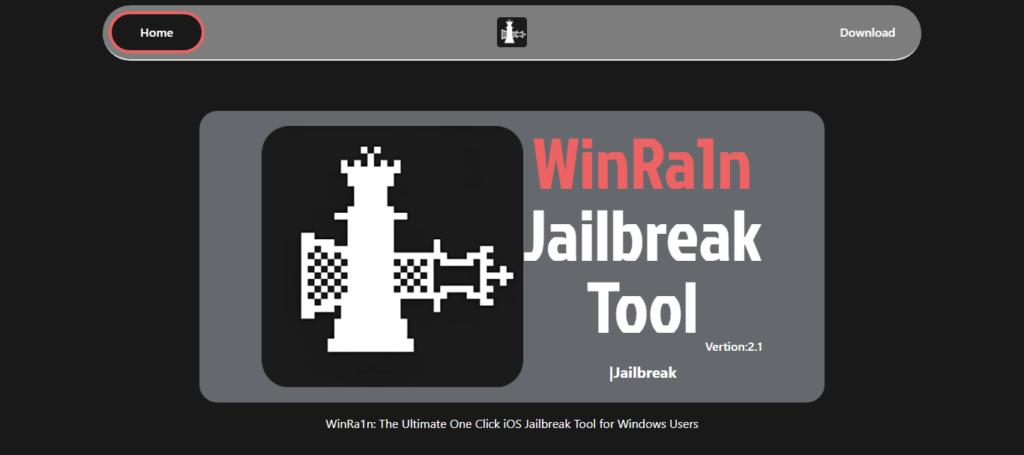
WinRa1n is a purpose-built, one-click jailbreak tool for Windows that brings the full power of the checkM8 exploit ecosystem to your desktop or laptop PC. Whether you are a long-time jailbreak enthusiast or a first-timer curious about unlocking the hidden potential of your iPhone or iPad, WinRa1n is the most accessible, streamlined solution available today.
This comprehensive guide covers everything you need to know about WinRa1n — what it is, how it works, which devices and iOS versions it supports, how to use it safely, and what you can do once your device is jailbroken. Let’s dive in.
What Is WinRa1n? The Windows Jailbreak Tool Explained
WinRa1n is a free, one-click iOS jailbreak application designed exclusively for Windows users. Developed by iKey and currently available as version 2.1, it supports devices running iOS 12 through iOS 17 on A7 through A11 chips. The tool is distributed as a simple Windows executable that requires no bootable USB drive, no dual-boot setup, and no command-line knowledge.
At its core, WinRa1n is a Windows-compatible wrapper that bundles three of the most trusted jailbreak technologies in the community into a single, polished graphical interface:
- CheckM8 — the foundational bootrom exploit
- Checkra1n — in versions 0.12.4 and 0.1337.1
- Palera1n — v2.0.0 Beta5, including Dropbear support
By packaging all three tools together, WinRa1n gives users access to a broad range of iOS versions and device types from a single interface — no technical configuration required.
“WinRa1n is the easiest and fastest way to jailbreak your iOS device on Windows, as it does not require a USB drive to boot.” — winra1n.net
The Technology Behind WinRa1n: Understanding the CheckM8 Exploit
To fully appreciate what WinRa1n offers, it helps to understand the underlying technology that makes it possible: the checkM8 bootrom exploit.
What Is a Bootrom Exploit?
Every Apple device contains a Boot ROM (sometimes called SecureROM) — a tiny, read-only memory chip that contains the very first code executed when you power on your iPhone or iPad. Think of it as the foundation layer beneath everything else, including iOS itself. Because this chip is physically read-only, any vulnerability found within it cannot be patched through a software update. Apple would need to physically redesign the hardware to fix it.
This is precisely what makes checkM8 so significant. Discovered and published by the security researcher known as axi0mX, checkM8 (pronounced “checkmate”) is a permanent, unpatchable bootrom vulnerability. It carries the CVE identifier CVE-2019-8900 and affects every Apple device running chips from the A5 all the way through the A11 Bionic — spanning the iPhone 4S through the iPhone X, along with numerous iPad and iPod touch models.
Why CheckM8 Is a Game-Changer
The iOS jailbreaking community has seen hundreds of exploits come and go over the years. Apple’s typical response is swift: release a software patch, and the jailbreak window closes. With checkM8, that cycle simply does not apply. Because the vulnerability lives in the hardware’s bootrom rather than the operating system, no iOS update can ever close the door on devices with A5–A11 chips.
This has profound implications for jailbreakers and security researchers alike. Jailbreak developers no longer need to discover new OS-level vulnerabilities for these devices — the hardware vulnerability provides a permanent foundation. Researchers gain an unparalleled ability to inspect iOS internals, audit app behaviour, and identify potential security weaknesses that Apple’s own code review may have missed.
Important Security Context
While checkM8 is powerful, it is worth understanding its limitations from a security standpoint. The exploit cannot be triggered remotely — physical access to the device is required. It does not bypass Touch ID, Face ID, or the Secure Enclave, meaning personal data remains protected from someone who does not know your passcode. It also does not persist across reboots on its own, which is why WinRa1n implements a semi-tethered jailbreak model (more on this below).
For the average user, these characteristics mean that simply owning an affected device poses no elevated security risk. The exploit only matters if someone has your device in their hands and connects it to a computer.
WinRa1n 2.1 Features: Everything You Get in One Download
WinRa1n 2.1 is packed with features designed to make the jailbreaking experience as smooth and accessible as possible. Here is a breakdown of what the tool offers:
1. Completely Free
WinRa1n is 100% free to download and use. There are no premium tiers, no subscriptions, and no hidden costs. The full jailbreaking capability is available to every Windows user at no charge.
2. One-Click Simplicity
One of WinRa1n’s most celebrated features is its one-click jailbreak functionality. Once you have connected your device and selected your preferred jailbreak method (CheckM8, Checkra1n, or Palera1n), a single button press initiates the entire process. WinRa1n handles detection, exploitation, and installation automatically.
3. No USB Drive Required
Unlike some Windows-based jailbreak approaches that require you to create a bootable Linux USB drive and restart your computer, WinRa1n runs entirely within Windows. You download the executable, run it, connect your device, and you’re done. No system restarts, no BIOS configuration, no USB flashing tools needed.
4. Rootful Jailbreak Support
WinRa1n supports rootful jailbreaking, which means the jailbreak grants full read/write access to the root directory of the iOS filesystem. This is the gold standard for iOS customisation, enabling you to install virtually any tweak, theme, or app modification without limitations. Advanced users and developers particularly value rootful access for its unrestricted capability.
5. Rootless Mode via Palera1n
For users who prefer a safer, more conservative approach, WinRa1n also supports rootless jailbreaking through Palera1n. In rootless mode, tweaks and modifications are confined to the /var directory, which contains user data rather than system files. This makes the jailbreak harder for apps to detect and easier to remove if needed.
6. Multiple Jailbreak Engines in One Tool
WinRa1n bundles three distinct jailbreak tools:
- CheckM8: The raw bootrom exploit, suitable for A7–A11 devices across a wide range of iOS versions.
- Checkra1n 0.12.4: Best for A7–A11 devices on iOS 12 through iOS 14, with a well-established track record.
- Checkra1n 0.1337.1: An updated version of checkra1n with expanded capabilities.
- Palera1n v2.0.0 Beta5: Designed for iOS 15 through iOS 17, with Dropbear SSH support for advanced users.
7. Virtual Machine Compatible
WinRa1n 2.1 can be run inside virtual machines, making it accessible to users who run Windows inside software like VMware or Parallels on a Mac. This adds significant flexibility for users who work in mixed operating system environments.
8. Multi-Mode Support
WinRa1n can detect and work with your device regardless of whether it is in Normal mode (device on and unlocked), Recovery mode (showing the iTunes/Finder logo), or DFU (Device Firmware Upgrade) mode. The tool automatically identifies the current mode and applies the appropriate procedure.
9. Universal USB Compatibility
WinRa1n supports USB 2.0, USB 3.0, and USB Type-C connections, making it compatible with virtually any Windows PC regardless of its age or port configuration.
10. Privacy and Safety First
WinRa1n does not collect any personal data from your device. The tool does not modify the system partition of iOS, meaning you can restore your device to its original factory state at any time using iTunes or Finder. It contains no malware or spyware and has been independently verified by users and community experts.
Supported Devices and iOS Versions
WinRa1n 2.1 supports all devices running A7 through A11 chips, covering iOS 12.0 through iOS 17.0. Here is a summary of the supported hardware:
| iOS Version | Chip (SoC) | Supported Devices |
| iOS 12.0 – 14.8.1 | A8 | iPhone 6, iPhone 6 Plus, iPad Mini 4 |
| iOS 12.0 – 14.8.1 | A9 | iPhone 6S, 6S Plus, SE (1st Gen), iPad (5th Gen) |
| iOS 12.0 – 14.8.1 | A9X | iPad Pro 12.9″ (1st Gen), iPad Pro 9.7″ |
| iOS 12.0 – 14.8.1 | A10 | iPhone 7, 7 Plus, iPad (6th Gen), iPad (7th Gen) |
| iOS 12.0 – 14.8.1 | A10X | iPad Pro 10.5″ (2017), iPad Pro 12.9″ (2nd Gen) |
| iOS 15.0 – 15.7.6 | A11 | iPhone 8, iPhone 8 Plus, iPhone X |
| iOS 16.0 – 17.0.0 | A8 (iPad) | iPad Pro 12.9″ (1st Gen) |
In summary, WinRa1n covers the following device families:
- iPhone 5S through iPhone X
- iPad Mini 2, 3, and 4
- iPad Air 1 and 2
- iPad 5th, 6th, and 7th generation
- iPad Pro 1st and 2nd generation (12.9-inch)
- iPad Pro 9.7-inch (2016) and 10.5-inch (2017)
- iPod touch 6th and 7th generation
How to Use WinRa1n: Step-by-Step Jailbreak Guide
Jailbreaking with WinRa1n is designed to be straightforward even for beginners. Follow these steps carefully to jailbreak your iOS device safely.
Before You Begin: Important Preparations
Before running WinRa1n, take these preparatory steps to ensure a smooth experience:
- Back up your device using iCloud or iTunes/Finder. While WinRa1n is designed to be non-destructive, it is always wise to have a backup before any major system operation.
- Disable Find My iPhone in Settings → [Your Name] → Find My. This is required for the jailbreak process.
- Ensure your device is charged to at least 50% to prevent any power interruption during jailbreaking.
- Note your current iOS version (Settings → General → About) and check it against the compatibility table above.
- If you have an A11 device (iPhone 8, 8 Plus, or X) on iOS 16, you must erase all content and settings before proceeding, as the jailbreak requires a passcode-free state during the process.
Step-by-Step Jailbreak Instructions
- Download WinRa1n 2.1 from the official website at winra1n.net. The file is approximately 120 MB.
- Extract the WinRa1n 2.1.zip archive using WinRAR, 7-Zip, or Windows’ built-in extraction tool.
- Install iTunes and iCloud from Apple if you do not already have them. Ensure you are running the latest versions.
- From the extracted WinRa1n folder, install both AppleMobileDeviceSupport.msi and UsbDk_1.0.22_x64.msi. These are the USB drivers that allow WinRa1n to communicate with your iOS device.
- Restart your computer to apply all driver changes.
- Right-click WinRa1n2.1.exe and select Run as administrator. Administrator privileges are required for the USB driver interaction.
- Connect your iPhone, iPad, or iPod touch to your PC using a USB cable. When prompted on your device, tap Trust and enter your passcode.
- Click the Fix Driver button in WinRa1n. This ensures the USB drivers are correctly configured.
- Select your jailbreak method: CheckM8 for A7–A11 devices across all supported versions; Checkra1n 0.12.4 for iOS 12–14 on A7–A11 devices; or Palera1n for iOS 15–17 on A7–A11 devices.
- Click the Jailbreak button. WinRa1n will automatically detect whether your device is in Normal, Recovery, or DFU mode and proceed accordingly. On-screen instructions will guide you through entering DFU mode if required.
- Wait for the process to complete. This typically takes around 10 seconds. Your device will restart during the process.
- Once complete, the status icon in WinRa1n will turn blue, and your device will reboot into the jailbroken state with your package manager installed.
Tip: WinRa1n recommends using a USB-A cable for best results. USB-C connections can occasionally cause recognition issues with the checkM8 exploit on some devices.
Understanding Semi-Tethered Jailbreaks
WinRa1n uses a semi-tethered jailbreak model. Understanding what this means is important for day-to-day use of your jailbroken device.
What Is Semi-Tethered?
A semi-tethered jailbreak means that the jailbreak does not persist automatically across device reboots. If you restart your iPhone or iPad, it will boot up in a normal, un-jailbroken state. Your device will still function as a regular iOS device — you can make calls, use apps, and access your data — but jailbreak tweaks and extensions will not be loaded.
To re-enable the jailbreak after a restart, you simply need to reconnect your device to your Windows PC and run WinRa1n again. The re-jailbreaking process takes the same ~10 seconds as the initial jailbreak.
Semi-Tethered vs. Tethered vs. Semi-Untethered
It is worth briefly distinguishing between the three main jailbreak types:
- Tethered: The device cannot boot at all without being connected to a computer. Rare and generally impractical.
- Semi-Tethered: Device boots normally without a computer, but jailbreak functionality is inactive until re-enabled via PC. This is WinRa1n’s model.
- Semi-Untethered: Jailbreak can be re-enabled directly from the device using an app, without needing a computer. Examples include unc0ver and Taurine for compatible iOS versions.
- Untethered: Jailbreak persists completely across reboots with no intervention required. Extremely rare on modern iOS versions.
For most users, WinRa1n’s semi-tethered approach is perfectly acceptable. If you do not reboot your device frequently, you may go days or weeks without needing to re-run the tool.
Palera1n Support: Jailbreaking iOS 15, 16, and 17 on Windows
One of WinRa1n’s most powerful features is its integration of Palera1n, which extends jailbreak support to iOS 15, 16, and even iOS 17 — versions that Checkra1n does not cover.
Palera1n is built on the same checkM8 bootrom exploit as Checkra1n but extends its reach into more recent iOS versions. It supports A8 through A11 devices on iOS 15.0 and above, and the version bundled with WinRa1n — Palera1n v2.0.0 Beta5 — includes Dropbear SSH support, which allows advanced users to connect to their jailbroken device over SSH for deeper system access.
The inclusion of Palera1n in WinRa1n is particularly significant for Windows users because the official Palera1n distribution was historically only available for macOS and Linux, with Windows support requiring the cumbersome Palen1x bootable USB process. WinRa1n eliminates that friction entirely.
It is important to note that on A11 devices (iPhone 8, 8 Plus, X) running iOS 16, Palera1n requires the device to have no passcode set. This means SEP-dependent functions like Face ID, Touch ID, and Apple Pay will be unavailable while the jailbreak is active. Removing the jailbreak and restoring a passcode re-enables all of these features normally.
What Can You Do With a Jailbroken iOS Device?
Jailbreaking unlocks a level of personalisation and functionality that Apple simply does not permit through the App Store. Here is a taste of what becomes possible once WinRa1n has done its job:
Install a Package Manager
The first thing WinRa1n does after jailbreaking is install a package manager on your device. Depending on your configuration, this may be Cydia, Sileo, or Zebra. These apps function like an App Store for jailbreak tweaks and tools, giving you access to thousands of community-built modifications.
Deep Customisation
Jailbreaking lets you customise virtually every aspect of iOS that Apple normally locks down. Popular categories of tweaks include:
- Themes and visual overhauls: Completely redesign the look of your home screen, icons, lock screen, and control centre.
- System-level tweaks: Enable features that Apple restricts, such as always-on displays, custom notification styles, or side-loaded app support.
- Productivity enhancements: Install tools that improve multitasking, file management, and inter-app communication.
- App modifications: Many tweaks unlock hidden features within popular apps or remove in-app advertisements.
- Developer tools: SSH access, file system explorers, and debugging tools are invaluable for iOS developers.
Security Research
The checkM8 exploit has become a cornerstone tool in the iOS security research community. Researchers use jailbroken devices to audit app behaviour, reverse engineer iOS components, and identify vulnerabilities that can be responsibly reported to Apple. WinRa1n’s accessibility on Windows broadens the pool of researchers who can engage in this work.
Reviving Older Devices
Many of the devices supported by WinRa1n are no longer receiving iOS updates from Apple. Jailbreaking can breathe new life into an older iPhone 6 or iPad Air by enabling tweaks that improve performance, extend functionality, or provide features that newer iOS versions offer on newer hardware.
Risks and Considerations: What You Should Know Before Jailbreaking
WinRa1n and the broader jailbreaking community are transparent about the risks involved. Here is an honest assessment:
Warranty Implications
Jailbreaking your device will void its warranty with Apple. If you take a jailbroken device to an Apple Store for service, Apple may decline to assist or may restore the device to a stock state before providing support. However, because WinRa1n does not modify the system partition, you can restore your device to factory settings via iTunes at any time, effectively removing all traces of the jailbreak.
Security Considerations
A jailbroken device operates with reduced security compared to a stock iOS device. The protections Apple builds into iOS assume that the system partition cannot be modified. With root access enabled, malicious software (if installed by the user) could potentially cause more damage than on a stock device. The golden rule is to only install tweaks from trusted, well-reviewed repositories.
App Compatibility
Some apps with jailbreak detection built in may refuse to run on a jailbroken device. Banking apps, mobile payment platforms, and some games are common examples. Rootless jailbreaks (available via Palera1n in WinRa1n) are harder for these apps to detect, but this is an ongoing arms race between developers and the jailbreak community.
Semi-Tethered Inconvenience
As discussed above, the semi-tethered nature of WinRa1n means you will need your Windows PC handy whenever you restart your device. For most users this is a manageable trade-off, but it is worth considering if you frequently reboot your device or travel without your computer.
Potential Performance Impact
Loading jailbreak tweaks adds software overhead to your device. Poorly coded or incompatible tweaks can cause crashes, slowdowns, or battery drain. Sticking to well-maintained tweaks from reputable sources and keeping your tweaks up to date helps minimise these issues.
What’s New in WinRa1n 2.1
Version 2.1 brought several notable improvements and changes compared to earlier releases:
- Palera1n rootless mode is now compatible up to iOS 17, significantly extending the tool’s reach into modern iOS versions.
- Customisable Ramdisk/Overlay support gives advanced users greater flexibility in how the jailbreak environment is constructed.
- AMD CPUs now default to using UsbDK as the backend, addressing a longstanding reliability issue where AMD processors had a much lower success rate with the checkM8 exploit.
- WinRa1n 2.1 is capable of running in fully offline environments, making it suitable for air-gapped or restricted network situations.
- Devices can now be started directly in DFU mode from within the tool, streamlining the jailbreak workflow.
- Support for A6 devices has been removed in this version to focus on the A7–A11 range.
WinRa1n vs. Alternative Approaches: Why Choose WinRa1n?
Windows users wanting to jailbreak their iOS devices have had a few options over the years. Here is how WinRa1n compares:
WinRa1n vs. Palen1x (USB Bootable Linux)
Palen1x is the community’s traditional solution for running Palera1n on Windows. It works by flashing a lightweight Linux distribution to a USB drive and booting your PC from that drive. While effective, this approach requires you to restart your computer, configure BIOS boot order, and use additional tools like Balena Etcher to prepare the USB drive. WinRa1n eliminates every one of these steps — it runs natively in Windows without any of this overhead.
WinRa1n vs. Virtual Machine Linux
Some users run checkra1n or Palera1n inside a Linux virtual machine on Windows. This requires setting up and maintaining a VM, configuring USB passthrough, and troubleshooting the inevitable compatibility issues. WinRa1n provides the same jailbreak capability without any virtualisation complexity — though, notably, WinRa1n 2.1 also supports running inside a VM if that is your preference.
WinRa1n vs. unc0ver / Taurine (Semi-Untethered Jailbreaks)
Tools like unc0ver and Taurine offer semi-untethered jailbreaks for specific iOS versions (primarily iOS 14 and below for unc0ver), meaning you can re-enable the jailbreak directly from your device without a computer. However, these tools only work on specific iOS versions for which compatible OS-level exploits exist. WinRa1n’s checkM8 foundation works across a broader range of iOS versions (12 through 17) precisely because it exploits hardware rather than the operating system.
Frequently Asked Questions About WinRa1n
Is WinRa1n safe to download and use?
WinRa1n is developed by iKey and distributed through the official website at winra1n.net. The tool does not collect personal data, does not modify the iOS system partition, and does not contain malware. It has been verified by community members and independent testers. As with any software, always download from the official source and verify file integrity.
Will WinRa1n work on my iPhone?
WinRa1n works on iPhones from the iPhone 5S through the iPhone X (A7–A11 chips) running iOS 12 through iOS 17. iPhones from the iPhone XS/XR onwards use A12 or later chips, which are not vulnerable to the checkM8 exploit and are therefore not supported by WinRa1n.
Does jailbreaking with WinRa1n delete my data?
WinRa1n does not wipe your device data as part of the standard jailbreak process. However, if you are on iOS 16 with an A11 device and have previously set a passcode, you will need to erase all content and settings as a prerequisite. For all other supported configurations, your data remains intact. Regardless, a backup before jailbreaking is always recommended.
What happens if I want to undo the jailbreak?
Because WinRa1n does not modify the iOS system partition, removing the jailbreak is straightforward. Simply restore your device to factory settings using iTunes or Finder (Recovery Mode restore), and your device will be in a completely stock, un-jailbroken state.
What package manager does WinRa1n install?
WinRa1n can install Cydia, Sileo, or Zebra depending on your configuration and which jailbreak engine you use. Sileo is the recommended package manager for Palera1n-based jailbreaks on iOS 15 and above, as it is actively maintained and fully compatible with modern iOS versions. Cydia remains an option for iOS 12–14 configurations.
Does WinRa1n support Windows 11?
WinRa1n 2.1 supports all 64-bit versions of Windows on Intel, AMD, and ARM processors, which includes Windows 10 and Windows 11. There are no reported compatibility issues with Windows 11.
Conclusion: Should You Use WinRa1n?
WinRa1n represents a genuine breakthrough for the Windows jailbreaking community. By wrapping the proven power of checkM8, Checkra1n, and Palera1n into a single, free, no-USB-required executable, it has removed virtually every barrier that previously prevented Windows users from accessing the jailbreak ecosystem.
If you own a device in the A7–A11 range — an iPhone 6 through iPhone X, an iPad Air, a modern iPad Pro (1st or 2nd generation), or a 6th or 7th generation iPod touch — and you want to unlock its full potential, WinRa1n is the most accessible and reliable path to get there.
The tool is not without its trade-offs. The semi-tethered nature means you’ll need your PC nearby after reboots, and jailbreaking always carries some considerations around warranty, security, and app compatibility. But for the millions of iOS users who have wanted to customise their devices without the friction of switching ecosystems or booting from a USB drive, WinRa1n is the answer they’ve been waiting for.
Download WinRa1n 2.1 from the official site at winra1n.net, follow the step-by-step guide above, and join the thriving community of iOS users who have taken back control of their devices.
0 Comments
Be the first to comment.