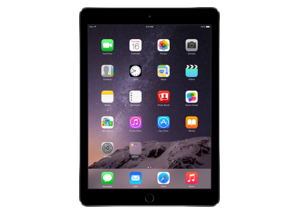
iPadOS 14.3 (18C66)
iPad Air 2 (Cellular)
iPad_64bit_TouchID_14.3_18C66_Restore.ipsw
Device
iPad Air 2 (Cellular)
SHA1
2b60d3816812c0e9f714bc9814058fd8ce8857e3
SHA256
e0afcae263c0348d9b52e5f9f7d135fe6979602eca6553627213800466e6a27e
MD5
341df016af861f629698387f76209c4b
iPadOS 14.3 Release Notes
iPadOS 14.3 includes support for Apple Fitness+ and AirPods Max. This release also introduces Privacy information on the App Store, and includes other features and bug fixes for your iPad.
Apple Fitness+
- A new fitness experience powered by Apple Watch with studio-style workouts available on your iPad, iPhone, and Apple TV (Apple Watch Series 3 and later)
- New Fitness app on iPad, iPhone, and Apple TV to browse Fitness+ workouts, trainers, and personalized recommendations
- Video workouts added each week in ten popular workout types: High Intensity Interval Training, Indoor Cycling, Yoga, Core, Strength, Dance, Rowing, Treadmill Walking, Treadmill Running, and Mindful Cooldown
- Playlists curated by Fitness+ trainers to complement your workout
- Fitness+ subscription available in Australia, Canada, Ireland, New Zealand, United Kingdom, and United States
AirPods Max
- Support for AirPods Max, new over-ear headphones
- High fidelity audio for rich sound
- Adaptive EQ adapts sound in real time to the personal fit of ear cushions
- Active Noise Cancellation to block out environmental noise
- Transparency mode to hear the environment around you
- Spatial audio with dynamic head tracking for a theater-like listening experience
Photos
- Apple ProRAW photos can be edited in the Photos app
- Option to record video at 25 fps
- Mirror the front facing camera for still photos on iPad Pro (1st and 2nd Gen), iPad (5th Gen and later), iPad mini 4, iPad Air 2
Privacy
- New privacy information section on App Store pages that includes a developer-reported summary of the app’s privacy practices
TV app
- An all-new Apple TV+ tab makes it easy to discover and watch Apple Original shows and movies
- Enhanced search so you can browse by category such as genre, and see recent searches and suggestions as you type
- Top search results shown with the most relevant matches across movies, TV shows, cast, channels, and sports
App Clips
- Support for launching App Clips by scanning Apple-designed App Clip Codes via Camera or from Control Center
Air quality
- Available in Maps and Siri for locations in China mainland
- Health recommendations are provided in Siri for the United States, United Kingdom, Germany, India, and Mexico at certain air quality levels
Safari
- Ecosia search engine option in Safari
This release also addresses the following issues:
- Some Messages notifications may not be received
- App folders may fail to open
- Spotlight search results, and opening apps from Spotlight may not work
- Contact groups failed to display members when composing a message
- Bluetooth could be unavailable in Settings
- Wireless accessories and peripherals using the WAC protocol could fail to complete setup
- The keyboard would dismiss when adding a list in Reminders while using VoiceOver
Some features may not be available for all regions or on all Apple devices. For information on the security content of Apple software updates, please visit this website: https://support.apple.com/kb/HT201222
How to Restore iPadOS 14.3 IPSW
🖥
iTunes (Windows / macOS Mojave and older) & Finder (macOS Catalina+)
- Download the iPad_64bit_TouchID_14.3_18C66_Restore.ipsw file to your computer.
- Connect your iPad Air 2 (Cellular) to your computer with a USB cable.
- Open Finder (macOS Catalina+) or iTunes (Windows / older macOS) and select your device.
- To Update (keeps data): hold Option (Mac) or Shift (Windows) and click Check for Update.
- To Restore (erases data): hold Option (Mac) or Shift (Windows) and click Restore iPhone/iPad.
- Navigate to and select the downloaded .ipsw file, then confirm.
- Wait for the process to complete — do not disconnect the device.
⚠️ Note: This firmware is no longer signed by Apple. iTunes/Finder may reject the restore. Use a tool like futurerestore if you have saved blobs.
⌨️
idevicerestore (Command Line)
An open-source command-line tool that restores IPSW files without needing iTunes. Useful for advanced users, automation, and custom restore workflows.
- Install via Homebrew:
brew install idevicerestore
- Connect your device and put it into DFU mode.
- Run the restore command:
idevicerestore -t iPad_64bit_TouchID_14.3_18C66_Restore.ipsw
Common flags:
-eErase restore (factory reset)
-uUpdate restore (keep data)
-dEnable debug output
-nDry-run — don't actually restore
🔓
futurerestore (Saved Blobs / Downgrade)
futurerestore allows restoring to unsigned firmware like this one when you have saved APTickets (blobs) from a tool like TSSSaver or shsh.host.
- Download futurerestore from github.com/futurerestore/futurerestore.
- Ensure you have a saved .shsh2 blob for iPadOS 14.3 (18C66) on your iPad Air 2 (Cellular).
- Put your device into DFU mode and run:
futurerestore -t your_blob.shsh2 --latest-sep --latest-baseband iPad_64bit_TouchID_14.3_18C66_Restore.ipsw
⛔ Warning: Using --latest-sep requires the latest SEP to be compatible with iPadOS 14.3. Always verify compatibility before restoring to avoid a bricked device.
📲
Entering DFU Mode
DFU (Device Firmware Update) mode is required for most manual restores. The button combination varies by device:
iPhone 8 / X and later / iPad with Face ID
Press & release Volume Up → press & release Volume Down → hold Side button until screen goes black → hold Side + Volume Down for 5 s → release Side but keep Volume Down for 10 s.
iPhone 7 / 7 Plus
Hold Side + Volume Down for 8 s → release Side but keep Volume Down for 10 s.
iPhone 6s and earlier / iPad with Home button
Hold Home + Sleep/Wake for 8 s → release Sleep/Wake but keep Home for 10 s.
💡 Tip: In DFU mode the screen stays completely black. If you see the Apple logo or a "Connect to iTunes" screen, you entered Recovery mode instead — try again.
⇓ Download IPSW Firmware (4.15 GB)