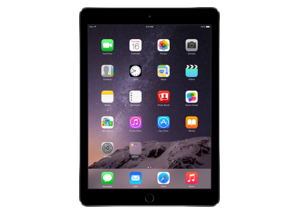
iPadOS 14.5 (18E199)
iPad Air 2 (Cellular)
iPad_64bit_TouchID_14.5_18E199_Restore.ipsw
Device
iPad Air 2 (Cellular)
SHA1
00567bb19b92db1b5304d6f9b2fadf2fc5036e43
SHA256
a6a0996f9dfb553ab3632f12b82c448edd834388e8194d99d2f1ec29ff1d36d5
MD5
2cae1ba7f06dfe2371854a6270c0ca8c
iPadOS 14.5 Release Notes
AirTag and Find My
- Support for AirTag to keep track of and find your important items like your keys, wallet, backpack and more, privately and securely in the Find My app
- AirTag can be located by playing a sound via the built-in speaker
- The Find My network with hundreds of millions of devices can help you find your AirTag, even when it isn't nearby
- Lost Mode notifies you when your AirTag is found, and you can enter a phone number where you can be contacted
Emoji
- Support for separate skin tones for each individual in all variations of the couple kissing emoji and couple with heart emoji
- New face emojis, heart emojis, woman with a beard emoji
Siri
- Siri now includes more diverse voice options
- Incoming calls can be announced with Siri, including who is calling, when you're wearing your AirPods or compatible Beats headphones, and you can answer hands-free
- Group FaceTime calls are supported by asking Siri to FaceTime a list of contacts or a group name from Messages
- Emergency contacts can be called by asking Siri
Privacy
- App Tracking Transparency lets you control which apps are allowed to track your activity across other companies' apps and websites for ads or sharing with data brokers
Apple Music
- Share your favorite lyrics using Messages, Facebook, and Instagram Stories, and subscribers can play the snippet in Messages without leaving the conversation
- City charts showcase what's popular in over 100 cities from all over the world
Podcasts
- Podcasts Show Pages are redesigned to make it easier to start listening
- Option to save and download episodes, automatically adding them to your Library for quick access
- Download behavior and notification settings can be customized on a show-by-show basis
- Top Charts and popular categories in Search help you discover new shows
News
- Redesigned News+ tab enables Apple News+ subscribers to quickly find, download, and manage magazine and newspaper issues
- All-new Search experience that helps you find relevant topics, channels, and stories
Reminders
- Ability to sort reminders by Title, Priority, Due Date, or Creation date
- Option to print your reminder lists
Gaming
- Xbox Series X|S Wireless Controller or Sony PS5 DualSense™ Wireless Controller support
Fitness+
- Ability to stream audio and video content from Apple Fitness+ workouts to AirPlay 2-enabled TVs and devices
This release also fixes the following issues:
- Messages at the bottom of the thread may be hidden by the keyboard under certain circumstances
- Deleted messages may still appear in Spotlight search
- Messages may persistently fail to send texts in some threads
- Mail would not load new emails for some users until restarting the device
- iCloud Tabs may not appear in Safari
- iCloud Keychain could be prevented from turning off
- Reminders created via Siri may be unintentionally set for early morning hours
- AirPods audio routing to incorrect device for Automatic Switching
- AirPods Automatic Switching notifications might be missing or duplicated
For information on the security content of Apple software updates, please visit this website: https://support.apple.com/kb/HT201222
How to Restore iPadOS 14.5 IPSW
🖥
iTunes (Windows / macOS Mojave and older) & Finder (macOS Catalina+)
- Download the iPad_64bit_TouchID_14.5_18E199_Restore.ipsw file to your computer.
- Connect your iPad Air 2 (Cellular) to your computer with a USB cable.
- Open Finder (macOS Catalina+) or iTunes (Windows / older macOS) and select your device.
- To Update (keeps data): hold Option (Mac) or Shift (Windows) and click Check for Update.
- To Restore (erases data): hold Option (Mac) or Shift (Windows) and click Restore iPhone/iPad.
- Navigate to and select the downloaded .ipsw file, then confirm.
- Wait for the process to complete — do not disconnect the device.
⚠️ Note: This firmware is no longer signed by Apple. iTunes/Finder may reject the restore. Use a tool like futurerestore if you have saved blobs.
⌨️
idevicerestore (Command Line)
An open-source command-line tool that restores IPSW files without needing iTunes. Useful for advanced users, automation, and custom restore workflows.
- Install via Homebrew:
brew install idevicerestore
- Connect your device and put it into DFU mode.
- Run the restore command:
idevicerestore -t iPad_64bit_TouchID_14.5_18E199_Restore.ipsw
Common flags:
-eErase restore (factory reset)
-uUpdate restore (keep data)
-dEnable debug output
-nDry-run — don't actually restore
🔓
futurerestore (Saved Blobs / Downgrade)
futurerestore allows restoring to unsigned firmware like this one when you have saved APTickets (blobs) from a tool like TSSSaver or shsh.host.
- Download futurerestore from github.com/futurerestore/futurerestore.
- Ensure you have a saved .shsh2 blob for iPadOS 14.5 (18E199) on your iPad Air 2 (Cellular).
- Put your device into DFU mode and run:
futurerestore -t your_blob.shsh2 --latest-sep --latest-baseband iPad_64bit_TouchID_14.5_18E199_Restore.ipsw
⛔ Warning: Using --latest-sep requires the latest SEP to be compatible with iPadOS 14.5. Always verify compatibility before restoring to avoid a bricked device.
📲
Entering DFU Mode
DFU (Device Firmware Update) mode is required for most manual restores. The button combination varies by device:
iPhone 8 / X and later / iPad with Face ID
Press & release Volume Up → press & release Volume Down → hold Side button until screen goes black → hold Side + Volume Down for 5 s → release Side but keep Volume Down for 10 s.
iPhone 7 / 7 Plus
Hold Side + Volume Down for 8 s → release Side but keep Volume Down for 10 s.
iPhone 6s and earlier / iPad with Home button
Hold Home + Sleep/Wake for 8 s → release Sleep/Wake but keep Home for 10 s.
💡 Tip: In DFU mode the screen stays completely black. If you see the Apple logo or a "Connect to iTunes" screen, you entered Recovery mode instead — try again.
⇓ Download IPSW Firmware (4.23 GB)