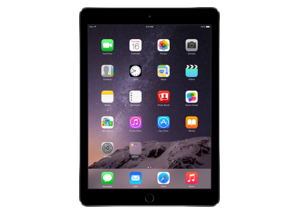
iPadOS 15.4 (19E241)
iPad Air 2 (Cellular)
iPad_64bit_TouchID_15.4_19E241_Restore.ipsw
Device
iPad Air 2 (Cellular)
SHA1
3a887220d984504cdb160e773f74d3eef9f99446
SHA256
9c4354efceb1364b5507ec9a6ad095882073bdd6e4d1e655efdd2bda0bf01350
MD5
e5e1fbd16d90523278091d1974489e9c
iPadOS 15.4 Release Notes
Universal Control
- Universal Control allows you to use a single mouse and keyboard across iPad and Mac
- Text can be typed on either iPad or Mac and you can drag and drop files between them
Emoji
- New emoji including faces, hand gestures, and household objects
- Handshake emoji allows you to choose separate skin tones for each hand
FaceTime
- SharePlay sessions can be initiated directly from supported apps
Siri
- Siri can provide time and date information while offline on iPad Pro with A12Z Bionic and later
- Siri now includes an additional voice, expanding the diversity of options
This release also includes the following enhancements for your iPad:
- Volume controls can be set to adjust as you rotate your iPad, on iPad (5th generation and newer), iPad mini (4th and 5th generation), iPad Air 2, iPad Air (3rd and 4th generation), and iPad Pro
- iCloud custom email domains can be managed from Settings
- Safari webpage translation adds support for Italian and Chinese (Traditional)
- Podcasts app adds episode filters for seasons, played, unplayed, saved, or downloaded episodes
- News offers enhanced discovery of audio content in the Today feed and Audio tab
- Camera in keyboard can be used to add text to Notes and Reminders
- Shortcuts adds support for tags in Reminders; add, remove, or query tags when creating and editing Shortcuts
- Security recommendations can now be hidden
- Saved passwords can now include your own notes in Settings
This release also includes bug fixes for your iPad:
- Keyboard may insert period between typed numbers
- News widgets in Today View may not open articles when tapped
- Photos and videos may not sync to iCloud Photo Library
- Speak Screen Accessibility feature may quit unexpectedly within the Books app
- Live Listen may not turn off when switched off in Control Center
Some features may not be available for all regions or on all Apple devices. For information on the security content of Apple software updates, please visit this website: https://support.apple.com/kb/HT201222
How to Restore iPadOS 15.4 IPSW
🖥
iTunes (Windows / macOS Mojave and older) & Finder (macOS Catalina+)
- Download the iPad_64bit_TouchID_15.4_19E241_Restore.ipsw file to your computer.
- Connect your iPad Air 2 (Cellular) to your computer with a USB cable.
- Open Finder (macOS Catalina+) or iTunes (Windows / older macOS) and select your device.
- To Update (keeps data): hold Option (Mac) or Shift (Windows) and click Check for Update.
- To Restore (erases data): hold Option (Mac) or Shift (Windows) and click Restore iPhone/iPad.
- Navigate to and select the downloaded .ipsw file, then confirm.
- Wait for the process to complete — do not disconnect the device.
⚠️ Note: This firmware is no longer signed by Apple. iTunes/Finder may reject the restore. Use a tool like futurerestore if you have saved blobs.
⌨️
idevicerestore (Command Line)
An open-source command-line tool that restores IPSW files without needing iTunes. Useful for advanced users, automation, and custom restore workflows.
- Install via Homebrew:
brew install idevicerestore
- Connect your device and put it into DFU mode.
- Run the restore command:
idevicerestore -t iPad_64bit_TouchID_15.4_19E241_Restore.ipsw
Common flags:
-eErase restore (factory reset)
-uUpdate restore (keep data)
-dEnable debug output
-nDry-run — don't actually restore
🔓
futurerestore (Saved Blobs / Downgrade)
futurerestore allows restoring to unsigned firmware like this one when you have saved APTickets (blobs) from a tool like TSSSaver or shsh.host.
- Download futurerestore from github.com/futurerestore/futurerestore.
- Ensure you have a saved .shsh2 blob for iPadOS 15.4 (19E241) on your iPad Air 2 (Cellular).
- Put your device into DFU mode and run:
futurerestore -t your_blob.shsh2 --latest-sep --latest-baseband iPad_64bit_TouchID_15.4_19E241_Restore.ipsw
⛔ Warning: Using --latest-sep requires the latest SEP to be compatible with iPadOS 15.4. Always verify compatibility before restoring to avoid a bricked device.
📲
Entering DFU Mode
DFU (Device Firmware Update) mode is required for most manual restores. The button combination varies by device:
iPhone 8 / X and later / iPad with Face ID
Press & release Volume Up → press & release Volume Down → hold Side button until screen goes black → hold Side + Volume Down for 5 s → release Side but keep Volume Down for 10 s.
iPhone 7 / 7 Plus
Hold Side + Volume Down for 8 s → release Side but keep Volume Down for 10 s.
iPhone 6s and earlier / iPad with Home button
Hold Home + Sleep/Wake for 8 s → release Sleep/Wake but keep Home for 10 s.
💡 Tip: In DFU mode the screen stays completely black. If you see the Apple logo or a "Connect to iTunes" screen, you entered Recovery mode instead — try again.
⇓ Download IPSW Firmware (4.69 GB)