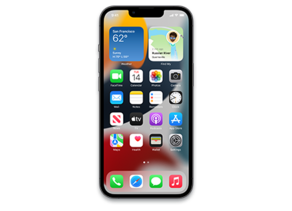
iOS 16.2 (20C65)
iPhone 13 Pro Max
iPhone14,3_16.2_20C65_Restore.ipsw
SHA1
70a58108395699509bdd5c49a7b7aa56b581d8ec
SHA256
27992c54a78169c030901c56227b22bdc528c31b779152e91aa2d879f68b365d
MD5
7ba0f5367a6139aa17f9be23975d6ca5
iOS 16.2 Release Notes
Freeform
- Freeform is a new app for working creatively with friends or colleagues on Mac, iPad and iPhone
- A flexible canvas lets you add files, images, stickies, and more
- Drawing tools let you sketch anywhere on the canvas with your finger
Apple Music Sing
- A new way to sing along with millions of your favorite songs in Apple Music
- Fully adjustable vocals let you duet with the original artist, sing solo, or mix it up
- Newly enhanced beat-by-beat lyrics make it even easier to follow along with the music
Advanced Data Protection for iCloud
- New option expands the total number of iCloud data categories protected using end-to-end encryption to 23 — including iCloud Backup, Notes, and Photos — protecting your information even in the case of a data breach in the cloud
Lock Screen
- New settings allow you to hide wallpaper or notifications when Always-On display is enabled on iPhone 14 Pro and iPhone 14 Pro Max
- Sleep widget lets you view your most recent sleep data
- Medications widget lets you view reminders and quickly access your schedule
Game Center
- SharePlay support in Game Center for multiplayer games so you can play with the people you are on a FaceTime call with
- Activity Widget allows you to see what your friends are playing and achieving in games right from your Home Screen
Apple TV
- Live Activities for Apple TV app let you follow your favorite teams with live scores right on your Lock Screen or in Dynamic Island on iPhone 14 Pro and iPhone 14 Pro Max
Home
- Improved reliability and efficiency of communication between your smart home accessories and Apple devices
This update also includes the following improvements and bug fixes:
- Improved search in Messages allows you to find photos based on their content, like a dog, car, person, or text
- Reload and Show IP Address setting enables iCloud Private Relay users to temporarily disable the service for a specific site in Safari
- News articles in Weather display information relevant to the weather in that location
- Participant Cursors in Notes allow you to see live indicators as others make updates in a shared note
- AirDrop now automatically reverts to Contacts Only after 10 minutes to prevent unwanted requests to receive content
- Crash Detection optimizations on iPhone 14 and iPhone 14 Pro models
- Fixes an issue that causes some notes not to sync with iCloud after updates are made
Some features may not be available for all regions or on all Apple devices. For information on the security content of Apple software updates, please visit this website:
https://support.apple.com/kb/HT201222
How to Restore iOS 16.2 IPSW
🖥
iTunes (Windows / macOS Mojave and older) & Finder (macOS Catalina+)
- Download the iPhone14,3_16.2_20C65_Restore.ipsw file to your computer.
- Connect your iPhone 13 Pro Max to your computer with a USB cable.
- Open Finder (macOS Catalina+) or iTunes (Windows / older macOS) and select your device.
- To Update (keeps data): hold Option (Mac) or Shift (Windows) and click Check for Update.
- To Restore (erases data): hold Option (Mac) or Shift (Windows) and click Restore iPhone/iPad.
- Navigate to and select the downloaded .ipsw file, then confirm.
- Wait for the process to complete — do not disconnect the device.
⚠️ Note: This firmware is no longer signed by Apple. iTunes/Finder may reject the restore. Use a tool like futurerestore if you have saved blobs.
⌨️
idevicerestore (Command Line)
An open-source command-line tool that restores IPSW files without needing iTunes. Useful for advanced users, automation, and custom restore workflows.
- Install via Homebrew:
brew install idevicerestore
- Connect your device and put it into DFU mode.
- Run the restore command:
idevicerestore -t iPhone14,3_16.2_20C65_Restore.ipsw
Common flags:
-eErase restore (factory reset)
-uUpdate restore (keep data)
-dEnable debug output
-nDry-run — don't actually restore
🔓
futurerestore (Saved Blobs / Downgrade)
futurerestore allows restoring to unsigned firmware like this one when you have saved APTickets (blobs) from a tool like TSSSaver or shsh.host.
- Download futurerestore from github.com/futurerestore/futurerestore.
- Ensure you have a saved .shsh2 blob for iOS 16.2 (20C65) on your iPhone 13 Pro Max.
- Put your device into DFU mode and run:
futurerestore -t your_blob.shsh2 --latest-sep --latest-baseband iPhone14,3_16.2_20C65_Restore.ipsw
⛔ Warning: Using --latest-sep requires the latest SEP to be compatible with iOS 16.2. Always verify compatibility before restoring to avoid a bricked device.
📲
Entering DFU Mode
DFU (Device Firmware Update) mode is required for most manual restores. The button combination varies by device:
iPhone 8 / X and later / iPad with Face ID
Press & release Volume Up → press & release Volume Down → hold Side button until screen goes black → hold Side + Volume Down for 5 s → release Side but keep Volume Down for 10 s.
iPhone 7 / 7 Plus
Hold Side + Volume Down for 8 s → release Side but keep Volume Down for 10 s.
iPhone 6s and earlier / iPad with Home button
Hold Home + Sleep/Wake for 8 s → release Sleep/Wake but keep Home for 10 s.
💡 Tip: In DFU mode the screen stays completely black. If you see the Apple logo or a "Connect to iTunes" screen, you entered Recovery mode instead — try again.
⇓ Download IPSW Firmware (6.13 GB)