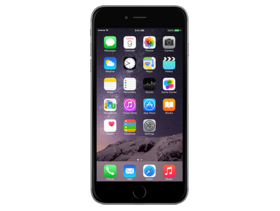
iOS 8.3 (12F70)
iPhone 6+
iPhone7,1_8.3_12F70_Restore.ipsw
SHA1
f9ecef7423a38040ce4b4e83d51567e30732da32
SHA256
6b0f64941d50779bdc1be3bf5862443e8c849b46d66cbb3c2c46afba44c12f7e
MD5
8c0564585c48f6b55b75ec693ef47e74
iOS 8.3 Release Notes
This release includes improved performance, bug fixes, and a redesigned Emoji keyboard. Changes include:
Improved performance for:
- App launch
- App responsiveness
- Messages
- Wi-Fi
- Control Center
- Safari tabs
- 3rd-party keyboards
- Keyboard shortcuts
- Simplified Chinese keyboard
Wi-Fi and Bluetooth fixes
- Fixes an issue where you could be continuously prompted for login credentials
- Addresses an issue where some devices disconnect intermittently from Wi-Fi networks
- Fixes an issue where hands-free phone calls could become disconnected
- Fixes an issue where audio playback could stop working with some bluetooth speakers
Orientation and rotation fixes
- Addresses an issue that sometimes prevented rotating back to portrait after having rotated to landscape
- Improves performance and stability issues that occurred when rotating the device between portrait and landscape
- Fixes an issue where device orientation appeared upside down after pulling the iPhone 6 Plus from your pocket
- Resolves an issue that sometimes prevented apps from rotating to correct orientation after switching apps in multitasking
Messages fixes
- Addresses issues that caused group messages to sometimes split
- Fixes an issue that sometimes removed the ability to forward or delete individual messages
- Resolves an issue that sometimes prevented a preview from appearing when taking a photo in Messages
- Adds the ability to report junk messages directly from the Messages app
- Adds the ability to filter out iMessages that are not sent by your contacts
Family Sharing fixes
- Fixes a bug where certain apps would not launch or update on family members’ devices
- Fixes a bug that prevented family members from downloading certain free apps
- Increased reliability for Ask to Buy notifications
CarPlay fixes
- Fixes an issue where Maps could come up as a black screen
- Fixes an issue where the UI could be incorrectly rotated
- Fixes an issue where the keyboard could appear on the CarPlay screen when it shouldn't
Enterprise fixes
- Improves reliability of installing and updating enterprise apps
- Corrects the time zone of Calendar events created in IBM Notes
- Fixes a problem that could cause web clip icons to become generic after restarting
- Improves reliability of saving the password for a web proxy
- Exchange out-of-office message can now be edited separately for external replies
- Improves recovery of Exchange accounts from temporary connection problems
- Improves compatibility of VPN and web proxy solutions
- Allows use of physical keyboards to log into Safari web sheets, such as for joining a public Wi-Fi network
- Fixes an issue that caused Exchange meetings with long notes to be truncated
Accessibility fixes
- Fixes an issue where using the back button in Safari causes VoiceOver gestures to not respond
- Fixes an issue where VoiceOver focus becomes unreliable in draft Mail messages
- Fixes an issue where Braille Screen Input cannot be used to type text in forms on webpages
- Fixes an issue where toggling Quick Nav on a Braille Display announces that Quick Nav is off
- Fixes an issue keeping app icons from being moveable on home screen when VoiceOver is enabled
- Fixes an issue in Speak Screen where speech will not start again after pausing
Other improvements and bug fixes
- Introduces a redesigned Emoji keyboard with over 300 new characters
- iCloud Photo Library has been optimized to work with the new Photos app on OS X 10.10.3 and is now out of beta
- Improves the pronunciation of street names during turn-by-turn navigation in Maps
- Includes support for Baum VarioUltra 20 and VarioUltra 40 braille displays
- Improves the display of Spotlight results when Reduce Transparency is turned on
- Adds Italic and Underline format options for iPhone 6 Plus landscape keyboard
- Adds the ability to remove shipping and billing addresses used with Apple Pay
- Additional language and country support for Siri: English (India, New Zealand), Danish (Denmark), Dutch (Netherlands), Portuguese (Brazil), Russian (Russia), Swedish (Sweden), Thai (Thailand), Turkish (Turkey)
- Additional dictation languages: Arabic (Saudi Arabia, United Arab Emirates) and Hebrew (Israel)
- Improves stability for Phone, Mail, Bluetooth connectivity, Photos, Safari tabs, Settings, Weather and Genius Playlists in Music
- Addresses an issue where Slide to Unlock could fail to work on certain devices
- Addresses an issue that sometimes prevented swiping to answer a phone call on the Lock screen
- Addresses an issue that prevented opening links in Safari PDFs
- Fixes an issue where selecting Clear History and Website Data in Safari Settings did not clear all data
- Fixes an issue that prevented autocorrecting "FYI"
- Addresses an issue where contextual predictions did not appear in Quick Reply
- Fixes an issue where Maps did not enter night mode from hybrid mode
- Resolves an issue that prevented initiating FaceTime calls from a browser or 3rd-party app using FaceTime URLs
- Fixes an issue that sometimes prevented photos from properly exporting to Digital Camera Image folders on Windows
- Fixes an issue that sometimes prevented an iPad backup from completing with iTunes
- Fixes an issue that could cause Podcast downloads to stall when switching from Wi-Fi to cellular networks
- Fixes an issue where remaining time on timer would sometimes incorrectly display as 00:00 on Lock screen
- Fixes an issue that sometimes prevented adjusting call volume
- Fixes an issue that caused the status bar to sometimes appear when it shouldn’t
For information on the security content of this update, please visit this website:
http://support.apple.com/kb/HT1222
How to Restore iOS 8.3 IPSW
🖥
iTunes (Windows / macOS Mojave and older) & Finder (macOS Catalina+)
- Download the iPhone7,1_8.3_12F70_Restore.ipsw file to your computer.
- Connect your iPhone 6+ to your computer with a USB cable.
- Open Finder (macOS Catalina+) or iTunes (Windows / older macOS) and select your device.
- To Update (keeps data): hold Option (Mac) or Shift (Windows) and click Check for Update.
- To Restore (erases data): hold Option (Mac) or Shift (Windows) and click Restore iPhone/iPad.
- Navigate to and select the downloaded .ipsw file, then confirm.
- Wait for the process to complete — do not disconnect the device.
⚠️ Note: This firmware is no longer signed by Apple. iTunes/Finder may reject the restore. Use a tool like futurerestore if you have saved blobs.
⌨️
idevicerestore (Command Line)
An open-source command-line tool that restores IPSW files without needing iTunes. Useful for advanced users, automation, and custom restore workflows.
- Install via Homebrew:
brew install idevicerestore
- Connect your device and put it into DFU mode.
- Run the restore command:
idevicerestore -t iPhone7,1_8.3_12F70_Restore.ipsw
Common flags:
-eErase restore (factory reset)
-uUpdate restore (keep data)
-dEnable debug output
-nDry-run — don't actually restore
🔓
futurerestore (Saved Blobs / Downgrade)
futurerestore allows restoring to unsigned firmware like this one when you have saved APTickets (blobs) from a tool like TSSSaver or shsh.host.
- Download futurerestore from github.com/futurerestore/futurerestore.
- Ensure you have a saved .shsh2 blob for iOS 8.3 (12F70) on your iPhone 6+.
- Put your device into DFU mode and run:
futurerestore -t your_blob.shsh2 --latest-sep --latest-baseband iPhone7,1_8.3_12F70_Restore.ipsw
⛔ Warning: Using --latest-sep requires the latest SEP to be compatible with iOS 8.3. Always verify compatibility before restoring to avoid a bricked device.
📲
Entering DFU Mode
DFU (Device Firmware Update) mode is required for most manual restores. The button combination varies by device:
iPhone 8 / X and later / iPad with Face ID
Press & release Volume Up → press & release Volume Down → hold Side button until screen goes black → hold Side + Volume Down for 5 s → release Side but keep Volume Down for 10 s.
iPhone 7 / 7 Plus
Hold Side + Volume Down for 8 s → release Side but keep Volume Down for 10 s.
iPhone 6s and earlier / iPad with Home button
Hold Home + Sleep/Wake for 8 s → release Sleep/Wake but keep Home for 10 s.
💡 Tip: In DFU mode the screen stays completely black. If you see the Apple logo or a "Connect to iTunes" screen, you entered Recovery mode instead — try again.
⇓ Download IPSW Firmware (2.21 GB)