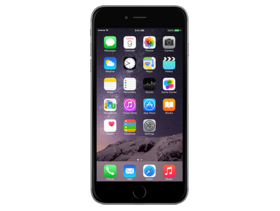
iOS 8.4 (12H143)
iPhone 6+
iPhone7,1_8.4_12H143_Restore.ipsw
SHA1
2b4844f8aeb3d3dcf603885fbcb1aa3e49b05f27
SHA256
cffbb0532230bab3f099243d88c4efb0d648d93b698d799cd153c97a2305a9ea
MD5
10747b939dd2560c3bf91a2577d1501b
iOS 8.4 Release Notes
This update introduces Apple Music—a revolutionary music service, 24/7 global radio, and a way for fans to connect with their favorite artists—all included in the redesigned Music app. iOS 8.4 also includes improvements for iBooks and bug fixes.
Apple Music
- Become an Apple Music member to play from millions of songs in the Apple Music catalog, or keep them offline for playback later
- For You: Members can see playlist and album recommendations, handpicked by music experts
- New: Members can find the latest, greatest new music available—direct from our editors
- Radio: Tune in to music, interviews, and exclusive radio shows on Beats 1, play radio stations created by our editors or create your own from any artist or song
- Connect: See shared thoughts, photos, music, and videos from artists you follow, then join the conversation
- My Music: Play from all of your iTunes purchases, songs from Apple Music, and playlists in one place
- Completely redesigned music player that includes new features such as Recently Added, MiniPlayer, Up Next, and more
- iTunes Store: Still the best place to buy your favorite music—one song or album at a time
- Availability and features may vary by country
iBooks improvements and fixes
- Browse, listen and download audiobooks from inside iBooks
- Enjoy the all-new Now Playing feature, designed specifically for audiobooks
- Books that are Made for iBooks now work on iPhone in addition to iPad
- Find and pre-order books in a series right from your library
- Improves accessibility of widgets, glossary and navigation in books made with iBooks Author
- New default Chinese font
- New setting to turn off Auto-Night theme in your library
- Resolves an issue that may have prevented Hide Purchases from working
- Resolves an issue that may have prevented downloading books from iCloud
Other improvements and bug fixes
- Fixes an issue where receiving a specific series of Unicode characters causes device to reboot
- Fixes an issue that prevented GPS accessories from providing location data
- Fixes an issue where deleted Apple Watch apps could re-install
For information on the security content of this update, please visit this website:
http://support.apple.com/kb/HT1222
How to Restore iOS 8.4 IPSW
🖥
iTunes (Windows / macOS Mojave and older) & Finder (macOS Catalina+)
- Download the iPhone7,1_8.4_12H143_Restore.ipsw file to your computer.
- Connect your iPhone 6+ to your computer with a USB cable.
- Open Finder (macOS Catalina+) or iTunes (Windows / older macOS) and select your device.
- To Update (keeps data): hold Option (Mac) or Shift (Windows) and click Check for Update.
- To Restore (erases data): hold Option (Mac) or Shift (Windows) and click Restore iPhone/iPad.
- Navigate to and select the downloaded .ipsw file, then confirm.
- Wait for the process to complete — do not disconnect the device.
⚠️ Note: This firmware is no longer signed by Apple. iTunes/Finder may reject the restore. Use a tool like futurerestore if you have saved blobs.
⌨️
idevicerestore (Command Line)
An open-source command-line tool that restores IPSW files without needing iTunes. Useful for advanced users, automation, and custom restore workflows.
- Install via Homebrew:
brew install idevicerestore
- Connect your device and put it into DFU mode.
- Run the restore command:
idevicerestore -t iPhone7,1_8.4_12H143_Restore.ipsw
Common flags:
-eErase restore (factory reset)
-uUpdate restore (keep data)
-dEnable debug output
-nDry-run — don't actually restore
🔓
futurerestore (Saved Blobs / Downgrade)
futurerestore allows restoring to unsigned firmware like this one when you have saved APTickets (blobs) from a tool like TSSSaver or shsh.host.
- Download futurerestore from github.com/futurerestore/futurerestore.
- Ensure you have a saved .shsh2 blob for iOS 8.4 (12H143) on your iPhone 6+.
- Put your device into DFU mode and run:
futurerestore -t your_blob.shsh2 --latest-sep --latest-baseband iPhone7,1_8.4_12H143_Restore.ipsw
⛔ Warning: Using --latest-sep requires the latest SEP to be compatible with iOS 8.4. Always verify compatibility before restoring to avoid a bricked device.
📲
Entering DFU Mode
DFU (Device Firmware Update) mode is required for most manual restores. The button combination varies by device:
iPhone 8 / X and later / iPad with Face ID
Press & release Volume Up → press & release Volume Down → hold Side button until screen goes black → hold Side + Volume Down for 5 s → release Side but keep Volume Down for 10 s.
iPhone 7 / 7 Plus
Hold Side + Volume Down for 8 s → release Side but keep Volume Down for 10 s.
iPhone 6s and earlier / iPad with Home button
Hold Home + Sleep/Wake for 8 s → release Sleep/Wake but keep Home for 10 s.
💡 Tip: In DFU mode the screen stays completely black. If you see the Apple logo or a "Connect to iTunes" screen, you entered Recovery mode instead — try again.
⇓ Download IPSW Firmware (2.22 GB)