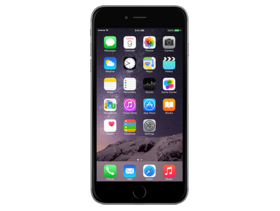
iOS 10.2 (14C92)
iPhone 6+
iPhone_5.5_10.2_14C92_Restore.ipsw
SHA1
9d9ad2da23bf531b00494d5ad208d4047e5e9182
SHA256
b85a1f3aa88c0021f0ec246df3556a4c4b35c66961871f4fc0191b54137f6bf1
MD5
fa606fe072e0c6d6a367ecf5557a457d
iOS 10.2 Release Notes
iOS 10.2 introduces new features including the TV app (US Only), a new and unified experience for accessing your TV shows and movies across multiple video apps. Emoji have been beautifully redesigned to reveal even more detail and over 100 new emoji have been added including new faces, food, animals, sports, and professions. This update also includes stability improvements and bug fixes.
TV
- Use Up Next to see the movies and shows you’re currently watching and pick up where you left off
- Get recommendations for new movies and TV shows in Watch Now
- Discover new apps and the latest iTunes releases in the Store
- Access the Library for your iTunes purchases and rentals
Emoji
- Beautifully redesigned emoji that reveal even more detail
- Over 100 new emoji including new faces, food, animals, sports, and professions
Photos
- Improves stabilization and delivers faster frame rate for Live Photos
- Improves accuracy of groupings of similar photos of the same person in the People album
- Fixes an issue where Memories might generate a memory from photos of screenshots, whiteboards or receipts
- Fixes an issue where the camera would stay zoomed in after switching back from the Camera Roll on iPhone 7 Plus
- Additional support for RAW digital cameras
Messages
- Adds new love and celebration full screen effects in Messages
- Fixes an issue that sometimes prevented the keyboard from displaying in Messages
Music
- Swipe up the Now Playing screen to more easily access Shuffle, Repeat and Up Next
- Choose how to sort Playlists, Albums, and Songs in Library
News
- Stories you’ve saved for later now appear the new Saved section
- The best paid stories from channels you subscribe to will now appear in a dedicated section in For You
- It’s now easier than ever to get to the next story, just swipe left or tap Next Story while reading
Mail
- Fixes an issue that caused the Move sheet to persist after filing a Mail message
- Addresses an issue with long press activating copy and paste in Mail
- Fixes an issue in which the wrong message would be selected after deleting a Mail conversation
Accessibility
- Adds BraillePen14 support to VoiceOver
- Fixes an issue where the braille table could switch unexpectedly with VoiceOver
- Fixes an issue where sometimes Siri enhanced voices were unavailable to VoiceOver
- Fixes an issue where VoiceOver users could not re-order items in lists
- Fixes an issue where Switch Control was sometimes unable to delete Voicemails
Other improvements and fixes
- Adds notification support for HomeKit accessories including window coverings, occupancy, motion, door/window, smoke, carbon monoxide, and water leak sensors
- Adds notification support for HomeKit accessories when software updates are available to HomeKit accessories
- Improves Bluetooth performance and connectivity with 3rd party accessories
- Fixes an issue that could cause FaceTime participants to appear out of focus
- Fixes an issue that could cause FaceTime calls to appear with incorrect aspect ratio and orientation
- Fixes an issue that prevented some Visual Voicemail from completing playback
- Fixes a Safari Reader issue that could cause articles to open as empty pages
- Fixes an issue that could cause Safari to quit unexpectedly after marking an item as read in Reading List
For information on the security content of Apple software updates, please visit this website:
https://support.apple.com/HT201222
How to Restore iOS 10.2 IPSW
🖥
iTunes (Windows / macOS Mojave and older) & Finder (macOS Catalina+)
- Download the iPhone_5.5_10.2_14C92_Restore.ipsw file to your computer.
- Connect your iPhone 6+ to your computer with a USB cable.
- Open Finder (macOS Catalina+) or iTunes (Windows / older macOS) and select your device.
- To Update (keeps data): hold Option (Mac) or Shift (Windows) and click Check for Update.
- To Restore (erases data): hold Option (Mac) or Shift (Windows) and click Restore iPhone/iPad.
- Navigate to and select the downloaded .ipsw file, then confirm.
- Wait for the process to complete — do not disconnect the device.
⚠️ Note: This firmware is no longer signed by Apple. iTunes/Finder may reject the restore. Use a tool like futurerestore if you have saved blobs.
⌨️
idevicerestore (Command Line)
An open-source command-line tool that restores IPSW files without needing iTunes. Useful for advanced users, automation, and custom restore workflows.
- Install via Homebrew:
brew install idevicerestore
- Connect your device and put it into DFU mode.
- Run the restore command:
idevicerestore -t iPhone_5.5_10.2_14C92_Restore.ipsw
Common flags:
-eErase restore (factory reset)
-uUpdate restore (keep data)
-dEnable debug output
-nDry-run — don't actually restore
🔓
futurerestore (Saved Blobs / Downgrade)
futurerestore allows restoring to unsigned firmware like this one when you have saved APTickets (blobs) from a tool like TSSSaver or shsh.host.
- Download futurerestore from github.com/futurerestore/futurerestore.
- Ensure you have a saved .shsh2 blob for iOS 10.2 (14C92) on your iPhone 6+.
- Put your device into DFU mode and run:
futurerestore -t your_blob.shsh2 --latest-sep --latest-baseband iPhone_5.5_10.2_14C92_Restore.ipsw
⛔ Warning: Using --latest-sep requires the latest SEP to be compatible with iOS 10.2. Always verify compatibility before restoring to avoid a bricked device.
📲
Entering DFU Mode
DFU (Device Firmware Update) mode is required for most manual restores. The button combination varies by device:
iPhone 8 / X and later / iPad with Face ID
Press & release Volume Up → press & release Volume Down → hold Side button until screen goes black → hold Side + Volume Down for 5 s → release Side but keep Volume Down for 10 s.
iPhone 7 / 7 Plus
Hold Side + Volume Down for 8 s → release Side but keep Volume Down for 10 s.
iPhone 6s and earlier / iPad with Home button
Hold Home + Sleep/Wake for 8 s → release Sleep/Wake but keep Home for 10 s.
💡 Tip: In DFU mode the screen stays completely black. If you see the Apple logo or a "Connect to iTunes" screen, you entered Recovery mode instead — try again.
⇓ Download IPSW Firmware (2.50 GB)