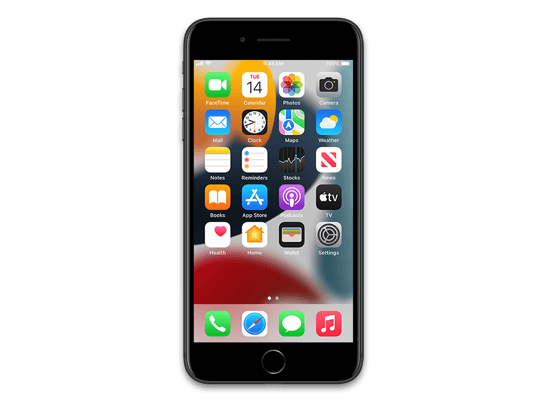
iOS 15.2.1 (19C63)
iPhone 7 Plus (Global)
Other Signed iOS Versions
iOS 15.2.1 Release Notes
iOS 15.2.1 contains bug fixes for your iPhone including:
- Messages may not load photos sent using an iCloud Link
- Third-party CarPlay apps may not respond to input
For information on the security content of Apple software updates, please visit this website:
https://support.apple.com/kb/HT201222
How to Restore iOS 15.2.1 IPSW
🖥
iTunes (Windows / macOS Mojave and older) & Finder (macOS Catalina+)
- Download the iPhone_5.5_P3_15.2.1_19C63_Restore.ipsw file to your computer.
- Connect your iPhone 7 Plus (Global) to your computer with a USB cable.
- Open Finder (macOS Catalina+) or iTunes (Windows / older macOS) and select your device.
- To Update (keeps data): hold Option (Mac) or Shift (Windows) and click Check for Update.
- To Restore (erases data): hold Option (Mac) or Shift (Windows) and click Restore iPhone/iPad.
- Navigate to and select the downloaded .ipsw file, then confirm.
- Wait for the process to complete — do not disconnect the device.
⚠️ Note: This firmware is no longer signed by Apple. iTunes/Finder may reject the restore. Use a tool like futurerestore if you have saved blobs.
⌨️
idevicerestore (Command Line)
An open-source command-line tool that restores IPSW files without needing iTunes. Useful for advanced users, automation, and custom restore workflows.
- Install via Homebrew:
brew install idevicerestore
- Connect your device and put it into DFU mode.
- Run the restore command:
idevicerestore -t iPhone_5.5_P3_15.2.1_19C63_Restore.ipsw
Common flags:
-eErase restore (factory reset)
-uUpdate restore (keep data)
-dEnable debug output
-nDry-run — don't actually restore
🔓
futurerestore (Saved Blobs / Downgrade)
futurerestore allows restoring to unsigned firmware like this one when you have saved APTickets (blobs) from a tool like TSSSaver or shsh.host.
- Download futurerestore from github.com/futurerestore/futurerestore.
- Ensure you have a saved .shsh2 blob for iOS 15.2.1 (19C63) on your iPhone 7 Plus (Global).
- Put your device into DFU mode and run:
futurerestore -t your_blob.shsh2 --latest-sep --latest-baseband iPhone_5.5_P3_15.2.1_19C63_Restore.ipsw
⛔ Warning: Using --latest-sep requires the latest SEP to be compatible with iOS 15.2.1. Always verify compatibility before restoring to avoid a bricked device.
📲
Entering DFU Mode
DFU (Device Firmware Update) mode is required for most manual restores. The button combination varies by device:
iPhone 8 / X and later / iPad with Face ID
Press & release Volume Up → press & release Volume Down → hold Side button until screen goes black → hold Side + Volume Down for 5 s → release Side but keep Volume Down for 10 s.
iPhone 7 / 7 Plus
Hold Side + Volume Down for 8 s → release Side but keep Volume Down for 10 s.
iPhone 6s and earlier / iPad with Home button
Hold Home + Sleep/Wake for 8 s → release Sleep/Wake but keep Home for 10 s.
💡 Tip: In DFU mode the screen stays completely black. If you see the Apple logo or a "Connect to iTunes" screen, you entered Recovery mode instead — try again.
iPhone_5.5_P3_15.2.1_19C63_Restore.ipsw
Device
iPhone 7 Plus (Global)
SHA1
9a9202494745888af11b9d785742d8bd572f7f6f
SHA256
22ea6570ea1c24cb76ace6b3e739d9ffbf79373f9613f0a2c248ed744ce9d87a
MD5
49b7d8a0ca4b5991f8e449f1408e5419
⇓ Download IPSW (5.57 GB)